




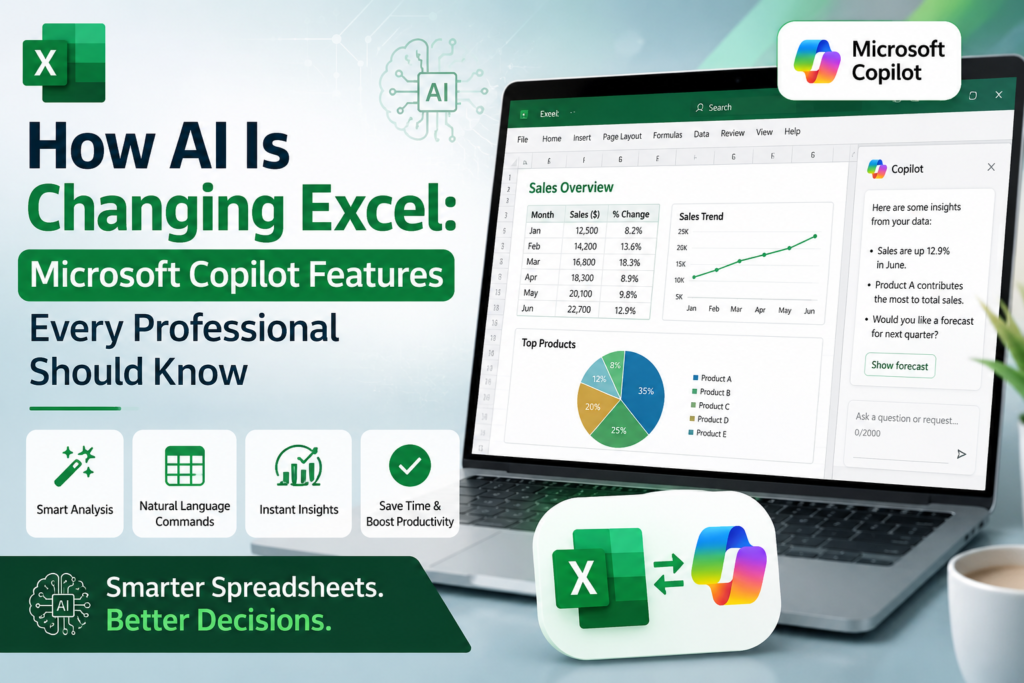
Microsoft Copilot in Excel is changing the way professionals build spreadsheets, analyse data and write formulas. Instead of hunting through menus or writing a complex formula from scratch, you can now describe what you want in plain English and let AI generate it for you. For anyone who spends their week in spreadsheets finance, admin, HR, operations this is quickly becoming one of the most useful features Microsoft has added to Excel in years.
This guide walks through exactly what Microsoft Copilot in Excel can do, the features worth learning first, how it compares to doing things manually, and where it fits for professionals across Melbourne, Sydney, Brisbane, Perth, Adelaide and Canberra.
What Is Microsoft Copilot in Excel?
Microsoft Copilot in Excel is a generative AI assistant built directly into the ribbon and side pane of Excel. You type a request “highlight the top 10 sales by region” or “add a column that calculates profit margin” and Copilot writes the formula, formats the data, or generates a chart for you.
It’s powered by the same large language model technology behind Microsoft 365 Copilot more broadly, but tuned specifically to understand spreadsheet structure: tables, headers, formulas and formatting. Copilot doesn’t just guess at what you want; it reads the actual data in your worksheet before responding.
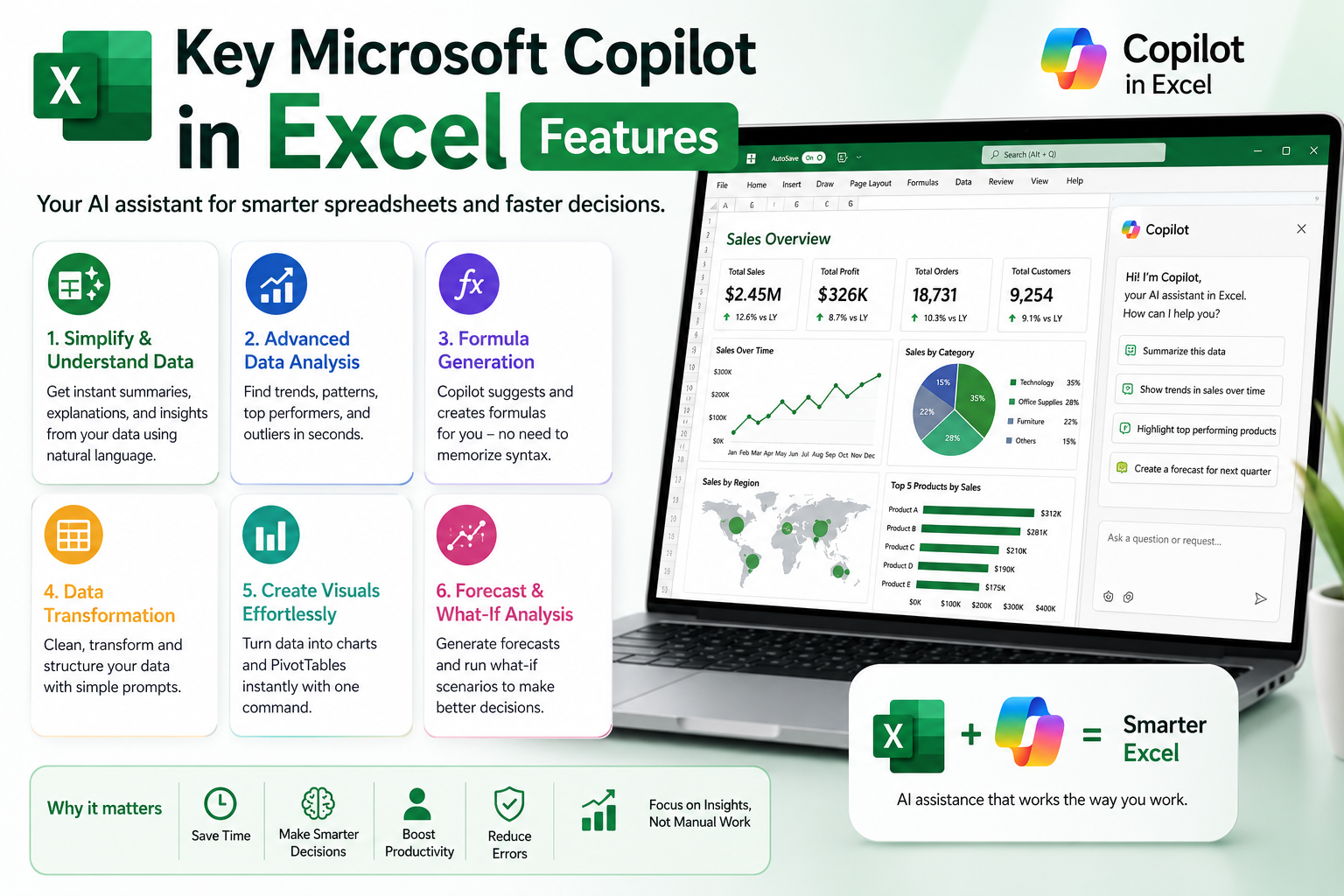
Key Microsoft Copilot in Excel Features
1. Formula Generation from Plain English
Describe the calculation you need “calculate year-over-year growth for each product” and Copilot writes the formula for you, including nested IF statements, XLOOKUP and SUMIFS logic that would otherwise take time to build manually.
2. Data Analysis and Insights
Copilot can scan a table and surface trends, outliers and patterns automatically, producing a short written summary alongside suggested charts useful for quickly understanding a new dataset before you build a report on it.
3. Formatting and Conditional Formatting Suggestions
Ask Copilot to “highlight cells where sales dropped more than 10%” and it applies the conditional formatting rule directly, saving the manual steps of building rules through the Format menu.
4. Python in Excel Integration
For more advanced analysis, Copilot can help bridge into Python in Excel, letting you run statistical models or more complex data transformations without leaving the spreadsheet a significant step up for professionals moving from Excel into data analysis roles.
5. Chart and PivotTable Creation
Rather than manually configuring a PivotTable field by field, you can ask Copilot to “summarise revenue by month and region” and it builds the PivotTable or chart directly, which you can then refine.
Microsoft Copilot in Excel vs Doing It Manually
Manual Excel work relies entirely on knowing the right formula, function or menu path which is exactly why formula literacy has always mattered so much. Microsoft Copilot in Excel speeds this up dramatically for common, well-defined tasks, drafting a formula or chart in seconds rather than minutes.
The trade-off is the same one seen across all generative AI tools: Copilot can misinterpret an ambiguous request or apply the wrong logic to messy data. Professionals who already understand core Excel formulas and data structure are far better positioned to catch these errors than someone relying on Copilot alone without the underlying knowledge.
Who Benefits Most from Microsoft Copilot in Excel?
Finance and Accounting Teams
Copilot speeds up variance analysis, month-end reporting and reconciliation formulas tasks that traditionally eat hours of a finance professional’s week.
HR and People Teams
Headcount reporting, attrition tracking and leave balance calculations become faster to build and easier to explain to non-technical stakeholders.
Project Managers and Operations
Copilot can generate quick project trackers, resource allocation summaries and status dashboards without needing deep formula expertise.
Small Business Owners and Admin Staff
For non-specialists, Copilot lowers the barrier to building useful reports and trackers without years of Excel experience.
Getting Started with Microsoft Copilot in Excel
Copilot in Excel is available through a Microsoft 365 Copilot licence, which sits on top of a standard Microsoft 365 subscription. Availability and pricing details change as Microsoft rolls the feature out further, so it’s worth checking Microsoft’s official documentation before budgeting for a team-wide rollout.
Note: Microsoft 365 licensing and Copilot availability change frequently. Always confirm current requirements on Microsoft’s official documentation before purchasing or budgeting for Copilot across a team.
Limitations to Keep in Mind
- Copilot can misread ambiguous prompts, producing a formula that looks correct but uses the wrong logic.
- It performs best on clean, well-structured tables messy, merged-cell spreadsheets produce less reliable results.
- You still need to understand core formulas to review and correct what Copilot generates.
- Requires a Microsoft 365 Copilot licence, which is an added cost on top of standard Excel.
Build the Excel Skills Behind Copilot
Copilot works best in the hands of someone who already understands how Excel formulas, tables and PivotTables actually work that’s what lets you spot a mistake in seconds instead of trusting AI output blindly.
If you’re starting from the basics, our Microsoft Excel Beginner course covers formulas, formatting and everyday spreadsheet skills. Ready to go further? Our Microsoft Excel Intermediate course covers functions, charts and data organisation, and our Microsoft Excel Advanced course covers PivotTables, macros and the data analysis skills that make Copilot’s output easy to verify.
For role-specific training, we also run Excel for Accountants, Excel for Project Managers and Excel for HR Professionals courses, plus the full MS Office Bundle if you want Excel, Outlook, Word and PowerPoint covered together.
Courses run in person in Melbourne, Sydney and Brisbane, with live online delivery for professionals in Perth, Adelaide and Canberra.
Related Reading
To build the formula skills that make Copilot’s output easy to check, see our guide to the Top 25 Excel Formulas Every Professional Should Know, our comparison of XLOOKUP vs VLOOKUP: Which Excel Function Should You Use?, and Power Query for Beginners: Clean and Transform Data Without Coding for the data-cleaning skills Copilot depends on.
Frequently Asked Questions
Is Microsoft Copilot in Excel free?
No. It requires a Microsoft 365 Copilot licence, which is a paid add-on to a standard Microsoft 365 subscription.
Does Copilot replace the need to learn Excel formulas?
No. Copilot drafts formulas for you, but you still need to understand what they do to review, correct and adapt them for your specific data.
Can Copilot work with any Excel spreadsheet?
Copilot works best with clean, well-structured tables. Spreadsheets with merged cells, inconsistent headers or messy formatting produce less reliable results.
Conclusion
Microsoft Copilot in Excel is a genuine step change in how quickly professionals can build formulas, reports and analysis but it works best alongside solid Excel fundamentals, not instead of them. Building that foundation now is the best way to get real value out of Copilot as it continues to expand across Microsoft 365.
Ready to build these skills properly? Explore our Excel courses across Australia or get in touch to enrol.