




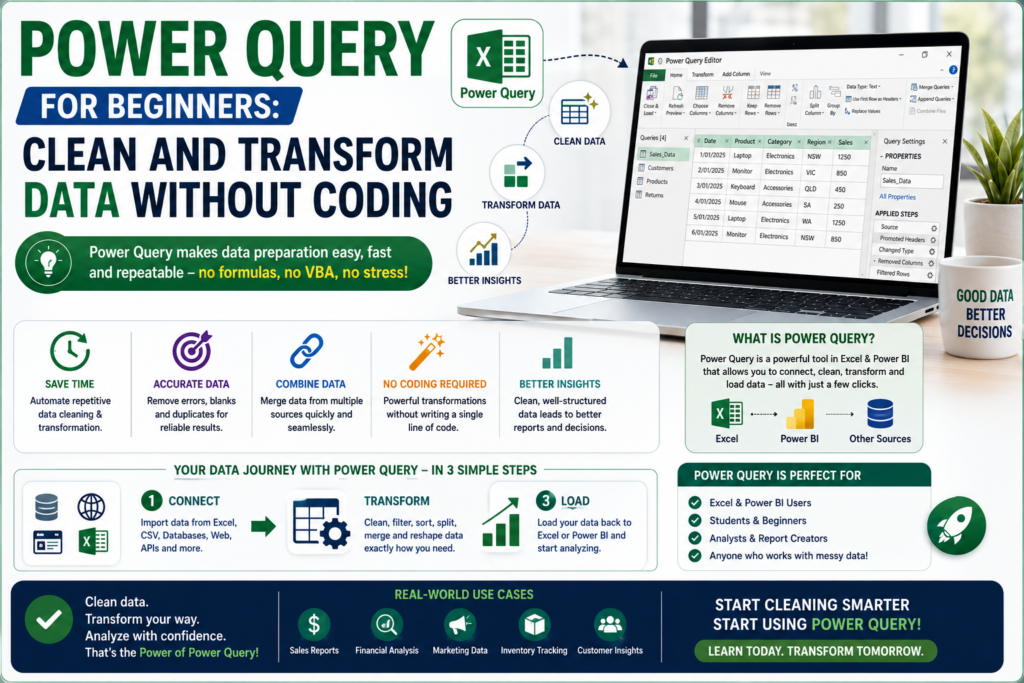
This Power Query for beginners guide is for anyone who’s tired of manually cleaning messy spreadsheets deleting blank rows, fixing inconsistent dates, or copy-pasting data from five different reports into one. Power Query is a free tool built into Excel that automates all of this, with zero coding required. If you work with data in any Australian business, this is one of the highest-leverage skills you can learn in 2026.
What Is Power Query?
Power Query is Excel’s built-in data transformation engine. It lets you connect to almost any data source spreadsheets, CSV files, databases, websites, folders of files clean and reshape that data using a simple point-and-click interface, and then load the result straight into your workbook. Once you’ve built the steps once, Power Query remembers them, so refreshing the data next week or next month takes one click instead of hours of manual rework.
Why Power Query for Beginners Matters in 2026
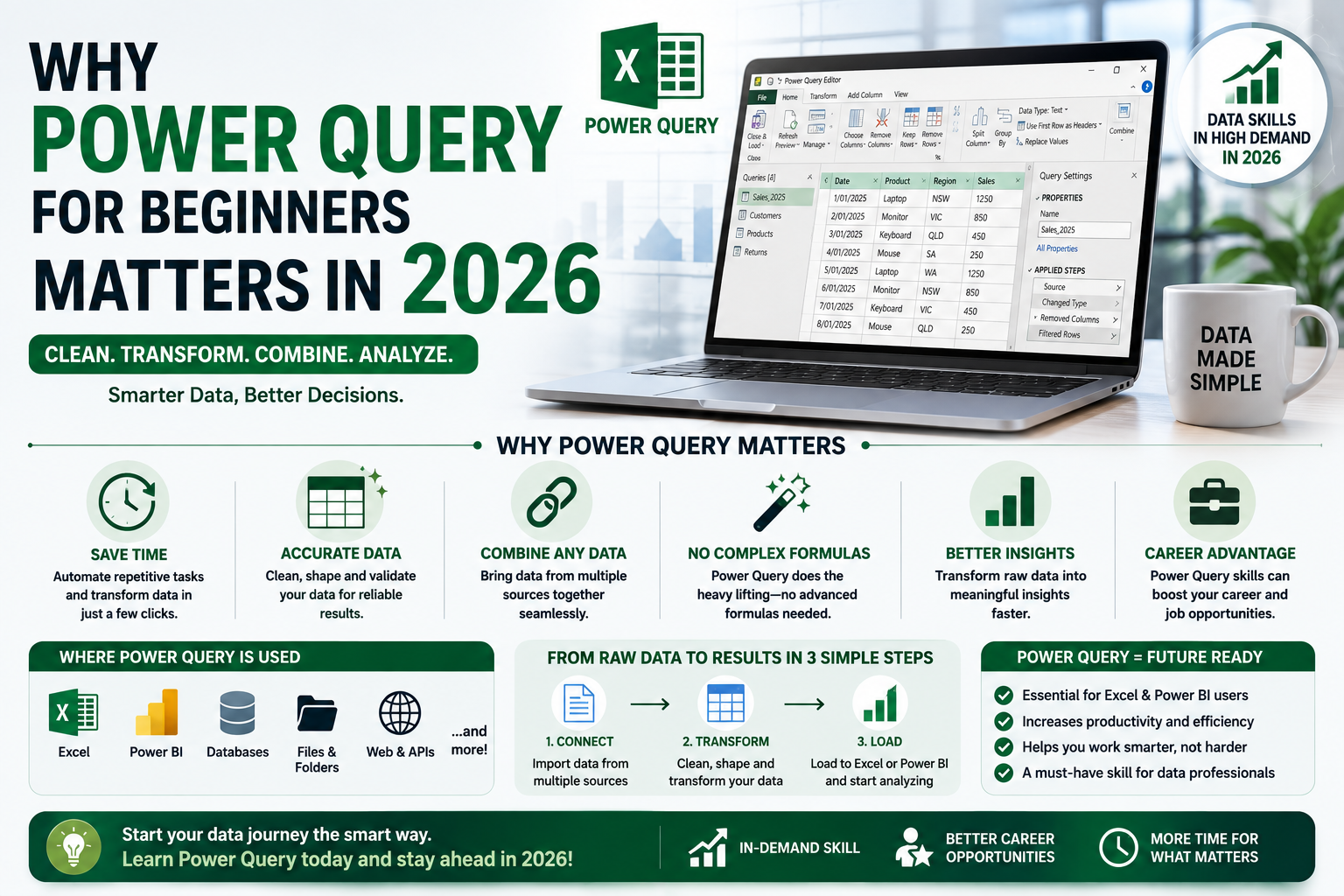
Australian businesses are generating more data than ever, but most teams still clean it manually in Excel a slow, error-prone process. Power Query removes that bottleneck. It’s already sitting inside Excel (Data tab, “Get & Transform”), it’s free, and it doesn’t require Python, SQL or any programming background. For business analysts, finance teams, marketers and operations staff, Power Query for beginners is often the fastest ROI skill in any Excel course.
What You Can Do With Power Query (No Coding Needed)
- Remove duplicates and blank rows — clean messy exports in a few clicks instead of manual filtering.
- Merge multiple files automatically — combine dozens of CSV or Excel files from a folder into one table.
- Split and combine columns — separate full names into first/last, or merge date and time fields.
- Fix inconsistent formatting — standardise dates, text case and number formats across a whole dataset.
- Join tables like a database — merge two tables on a common column, similar to a SQL join, without writing SQL.
- Automate refreshes — set up the transformation once, then refresh with a single click whenever new data arrives.
Power Query for Beginners: A Simple Step-by-Step Workflow
- Connect to your data — go to Data > Get Data and choose your source (Excel, CSV, folder, web page, database).
- Open the Power Query Editor — this is where you’ll see your data and every transformation step you apply.
- Clean the data — remove blank rows, fix column headers, change data types, and remove errors.
- Transform the structure — split columns, pivot or unpivot data, and merge queries where needed.
- Load the result — send the cleaned data into a worksheet, a data model, or straight into a Power BI report.
- Refresh anytime — next time the source data updates, click Refresh and every step reapplies automatically.
Common Mistakes Power Query Beginners Make
- Manually cleaning data in Excel first, then wondering why Power Query “isn’t needed” the whole point is skipping the manual step.
- Deleting steps in the Applied Steps panel instead of understanding what each one does.
- Not checking data types after each transformation, which causes errors further down the query.
- Trying to learn Power Query and DAX at the same time they’re related but separate skills; Power Query cleans data, DAX analyses it.
Power Query Skills Demand Across Australian Cities
Employers across every major Australian city increasingly list Power Query alongside core Excel skills in job ads for analyst, finance and operations roles.
- Sydney — finance and banking teams use Power Query heavily for reconciliations and reporting automation.
- Melbourne — strong demand across retail, education and government reporting teams.
- Brisbane — growing use in logistics and construction reporting workflows.
- Perth — resources companies use Power Query to consolidate operational data from multiple sites.
- Adelaide — defence and health sectors value Power Query for compliance-heavy, repeatable reporting.
- Canberra — public service roles increasingly expect Power Query alongside standard Excel budgeting skills.
Learn Power Query the Structured Way
Power Query is easy to start but easy to learn badly if you’re piecing it together from scattered tutorials. Our Excel courses online include a structured Power Query module that takes you from messy raw data to fully automated, refreshable reports. Once you’re comfortable cleaning data, our Power BI course is the natural next step for turning that clean data into interactive dashboards.
Frequently Asked Questions
Do I need to know coding to use Power Query?
No. Power Query for beginners is entirely point-and-click. Advanced users can write M code for custom logic, but it’s not required for everyday data cleaning.
Is Power Query available in all versions of Excel?
Power Query is built into Excel 2016 and later, as well as Microsoft 365. Older versions may need a free add-in.
What’s the difference between Power Query and Power BI?
Power Query cleans and transforms data. Power BI takes that data further, building interactive dashboards and reports. Many professionals use both together.
How long does it take to learn Power Query basics?
Most beginners can handle common tasks merging files, cleaning columns, basic joins within a few hours of focused, structured practice.
Final Thoughts
If you spend hours every week manually cleaning spreadsheets, Power Query for beginners is the single skill most likely to give you that time back. It’s free, it’s already in Excel, and it scales from a simple duplicate-removal task to fully automated, multi-source reporting pipelines. Start with Logitrain’s Excel courses online to build these skills properly from day one.