


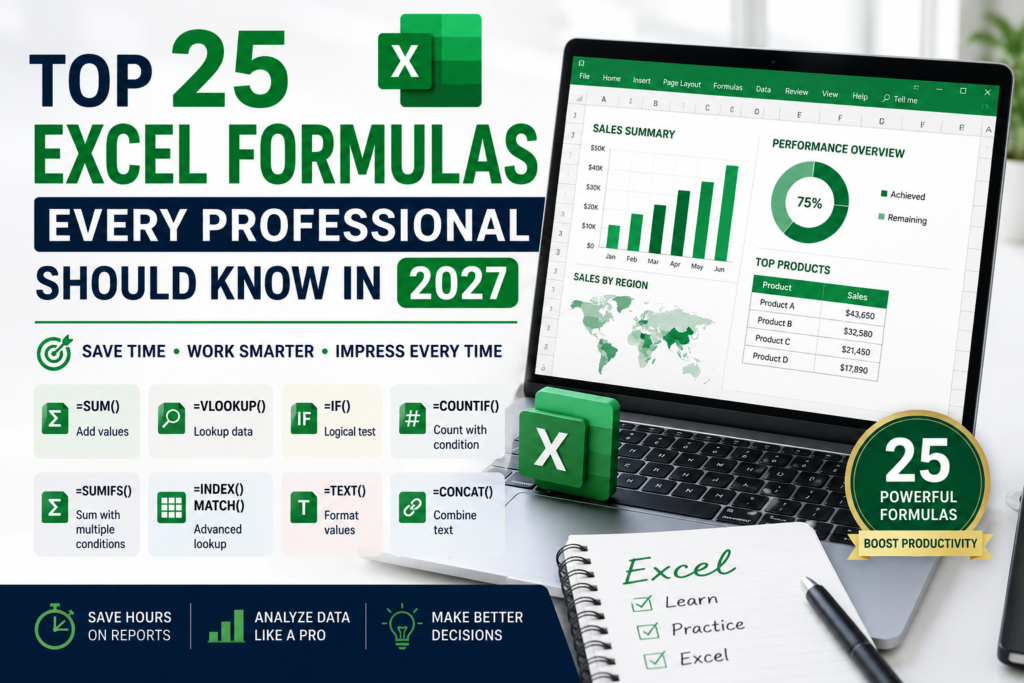
Excel Formulas are still the single most valuable spreadsheet skill you can put on a resume in 2027, no matter how much AI tooling gets bolted onto Microsoft 365. Whether you’re in finance, HR, project management or operations, knowing the right Excel Formulas turns hours of manual work into a few seconds of calculation. This guide walks through the 25 Excel Formulas every professional should know in 2027, grouped by what they actually help you do, with plain-English explanations and real examples.
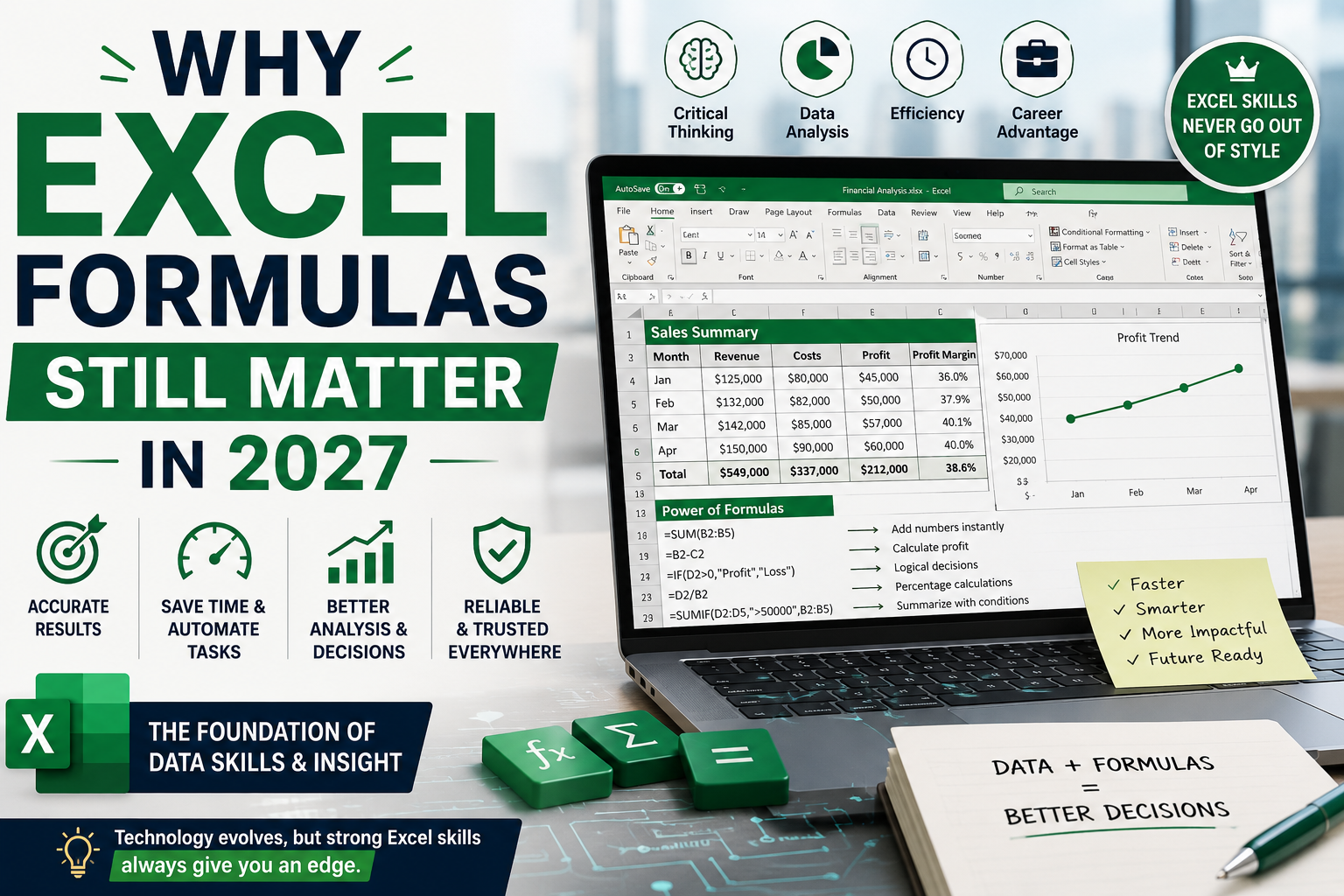
Why Excel Formulas Still Matter in 2027
Even with Copilot and AI features built into modern Excel, understanding core Excel Formulas remains essential AI suggestions are far more useful when you already know what a formula should be doing and can spot when it’s wrong. Employers across Australia consistently list Excel Formulas as a core requirement in finance, admin and analytics job ads, which is exactly why they’re worth mastering properly rather than relying on autocomplete alone. For a look at how AI is changing this landscape, see our guide on Microsoft Copilot in Excel.
Lookup and Reference Excel Formulas
- VLOOKUP — Searches for a value in the first column of a range and returns a value from another column in the same row. Example: =VLOOKUP(A2, D:F, 3, FALSE)
- XLOOKUP — The modern replacement for VLOOKUP — searches in any direction and doesn’t break when columns are inserted. Example: =XLOOKUP(A2, D:D, F:F)
- INDEX — Returns the value at a given row and column position within a range. Example: =INDEX(F:F, 5)
- MATCH — Returns the position of a value within a range, usually paired with INDEX for flexible lookups. Example: =MATCH(“Sydney”, A:A, 0)
- HLOOKUP — Works like VLOOKUP but searches across a row instead of down a column. Example: =HLOOKUP(A2, D1:H10, 4, FALSE)
Math and Statistical Excel Formulas
- SUM — Adds up a range of numbers — the most-used of all Excel Formulas. Example: =SUM(B2:B20)
- SUMIF — Adds values in a range that meet a single condition. Example: =SUMIF(A:A, “Brisbane”, B:B)
- SUMIFS — Adds values that meet multiple conditions across different columns. Example: =SUMIFS(C:C, A:A, “Brisbane”, B:B, “>1000”)
- AVERAGE — Calculates the mean of a range of numbers. Example: =AVERAGE(B2:B20)
- AVERAGEIFS — Calculates an average based on multiple conditions. Example: =AVERAGEIFS(C:C, A:A, “Sydney”, B:B, “>500”)
- COUNTIF — Counts cells in a range that meet a single condition. Example: =COUNTIF(A:A, “Completed”)
- COUNTIFS — Counts cells that meet multiple conditions at once. Example: =COUNTIFS(A:A, “Completed”, B:B, “2027”)
- ROUND — Rounds a number to a specified number of decimal places critical for clean financial reporting. Example: =ROUND(A2, 2)
Logical Excel Formulas
- IF — Tests a condition and returns one value if true and another if false — the backbone of decision-based Excel Formulas. Example: =IF(B2>1000, “Over Budget”, “On Track”)
- AND — Checks whether multiple conditions are all true, usually combined with IF. Example: =IF(AND(B2>50, C2>50), “Pass”, “Fail”)
- OR — Checks whether at least one of multiple conditions is true. Example: =IF(OR(B2=”Urgent”, C2=”High”), “Escalate”, “Normal”)
- IFERROR — Catches formula errors and replaces them with a cleaner message or value. Example: =IFERROR(VLOOKUP(A2,D:F,3,FALSE), “Not Found”)
Text-Based Excel Formulas
- CONCAT — Joins text from multiple cells into one, replacing the older CONCATENATE function. Example: =CONCAT(A2, ” “, B2)
- TEXTJOIN — Joins multiple values with a chosen separator and can ignore blank cells automatically. Example: =TEXTJOIN(“, “, TRUE, A2:A5)
- LEFT / RIGHT / MID — Extracts a set number of characters from the start, end, or middle of a text string. Example: =LEFT(A2, 3)
- TRIM — Removes extra spaces from text, which is essential when cleaning up data imported from other systems. Example: =TRIM(A2)
Date and Modern Dynamic Array Excel Formulas
- TODAY — Returns the current date and updates automatically whenever the file is opened. Example: =TODAY()
- DATEDIF — Calculates the difference between two dates in days, months or years handy for tenure or age calculations. Example: =DATEDIF(A2, TODAY(), “y”)
- UNIQUE — Returns a list of unique values from a range, removing duplicates automatically. Example: =UNIQUE(A2:A100)
- FILTER — Returns rows from a range that match a condition, without needing a separate filter step. Example: =FILTER(A2:C100, B2:B100=”Sydney”)
How to Practice These Excel Formulas
Reading a list of Excel Formulas is a good start, but real fluency comes from applying them to your own spreadsheets. Our Microsoft Excel Intermediate course covers lookup, logical and text formulas in depth with hands-on exercises, while the Microsoft Excel Advanced course builds on this with dynamic arrays, pivot tables and automation. If you’re in finance specifically, our Excel for Accountants course applies these Excel Formulas directly to reporting and reconciliation tasks. For related reading, check our guide on Advanced Excel Skills Employers Want or Power Query for Beginners for the next step after formulas.
Instructor-led and online classes are available in Melbourne, Sydney, Brisbane and Perth. For a full syntax reference on any formula covered here, Microsoft’s own Excel functions reference is the most reliable source to bookmark alongside this guide.
FAQs: Excel Formulas Every Professional Should Know
What is the most useful Excel formula to learn first?
IF and VLOOKUP (or XLOOKUP) are the two most commonly used Excel Formulas across almost every industry and job type.
Is XLOOKUP replacing VLOOKUP completely?
XLOOKUP is more flexible and increasingly preferred, but VLOOKUP is still widely used in older files and is worth knowing for compatibility.
Do I need to memorise all 25 Excel Formulas?
No. Most professionals rely heavily on 8–10 of these regularly and look up the rest as needed recognising when to use a formula matters more than memorising syntax.
Are these Excel Formulas relevant if I already use Power BI or Copilot?
Yes. Formula logic underpins how Power BI’s DAX and Copilot’s suggestions work, so understanding Excel Formulas makes those tools easier to use effectively.
Final Thoughts
Mastering these 25 Excel Formulas gives you a genuinely practical edge at work in 2027, whether you’re building financial models, HR reports, or project trackers. Start with the SUM, IF and lookup formulas if you’re newer to Excel, then work through the text and dynamic array functions as your confidence grows. If you’d like structured, hands-on practice rather than learning formula-by-formula on your own, explore our full range of Excel courses or get in touch to find the right level for you.