


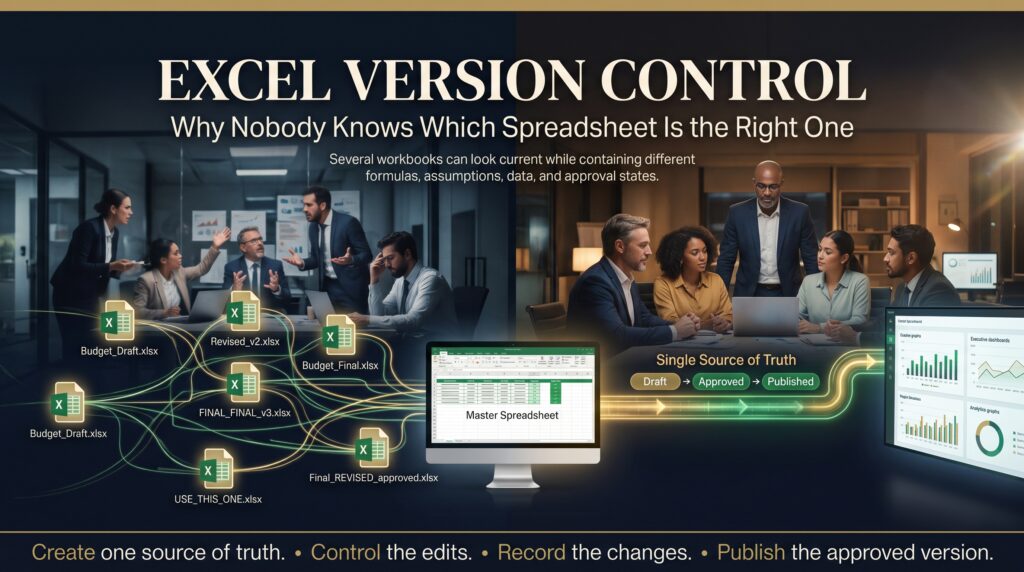
Excel version control is the thing nobody plans for until a Monday morning when someone asks, “Which spreadsheet are we actually using?” and four people give four different answers. One file is buried in an email chain. Another lives on a desktop. A third is called Budget_FINAL_v3_REAL.xlsx and sits on the shared drive right next to Budget_FINAL_v4.xlsx. Everyone is confident theirs is the latest.
That is the spreadsheet version control problem, and it quietly costs Australian businesses time, money and trust every single week. This guide explains why it happens, what it really costs, and how to fix Excel version control with a few simple habits and the right Microsoft 365 setup. It’s written for anyone who has ever been brave enough to open a file called “final2”.
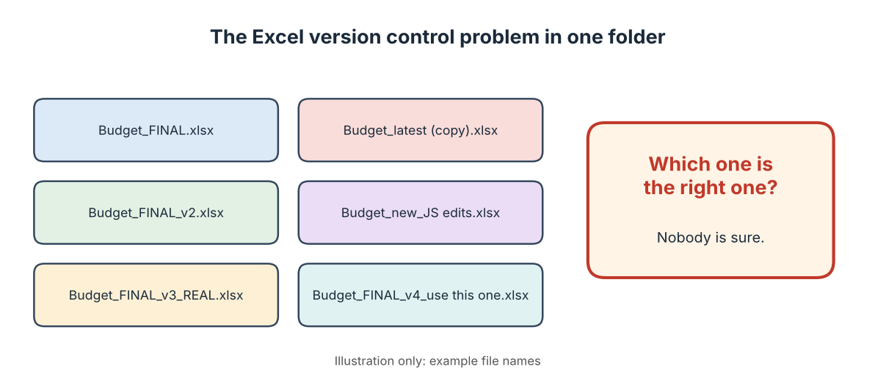
Image alt text: Excel version control problem showing six confusing spreadsheet copies and the question of which one is right
What Is Excel Version Control, and Why Does It Break Down?
Excel version control is the practice of making sure everyone works from one agreed, current copy of a workbook, and that every change to it can be traced. Software developers solved this problem decades ago with tools that record every edit, a discipline known as version control. Spreadsheets grew up differently. They started on personal computers, where the natural way to protect your work was to hit Save As and add a number to the file name.
That habit made sense when a spreadsheet belonged to one person. It stops making sense the moment a file becomes a shared business tool. Budgets, forecasts, rosters, price lists and project trackers get passed between people, and every handover is a chance for the file to fork. Excel won’t stop you from creating a second copy, a third or a fortieth, so it all happens quietly.
Poor Excel version control isn’t really a technology failure. It’s a habits failure that technology makes very easy.
How One Spreadsheet Quietly Becomes Fifteen
Nobody sets out to create chaos. It builds up through small, reasonable decisions:
- Someone emails the workbook as an attachment so a colleague can “just add their numbers”.
- A manager saves a copy to the desktop because the network was slow.
- A team member keeps a personal backup “in case something breaks”.
- A cell is changed during a meeting in one copy, but not in the others.
- A staff member leaves and a folder full of files stays behind that nobody dares delete.
Within a few months you have several files that look alike, show different numbers and carry no clear history. Nobody is lying and nobody is careless. The system simply allowed it.
Five Hidden Costs of Poor Excel Version Control
1. Decisions get made from the wrong numbers
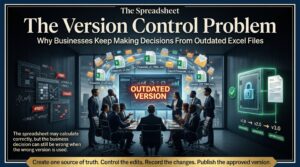
If a pricing or budget decision is based on an old copy, the error travels quietly into reports, meetings and contracts. It is the most expensive outcome and the hardest to catch, because the wrong file usually looks perfectly professional. We cover this in more detail in our article on why businesses keep making decisions from outdated Excel files.
2. Hours disappear into reconciliation
Comparing two near-identical workbooks line by line is slow, tedious work. Many finance and operations teams spend the start of every reporting cycle working out which copy is right, rather than analysing what the numbers mean. Weak Excel version control turns every reporting cycle into detective work.
3. Good work gets overwritten
When two people edit separate copies and one is saved over the other, changes vanish. Nobody notices until someone asks where last week’s update went, and by then nobody can say. It is one of the most common ways Excel version control fails.
4. Audit and compliance risk grows
Auditors, lenders and regulators want to know where a figure came from and who changed it. If you can’t show a clear trail, you have a problem even when the numbers happen to be correct.
5. Trust in the data erodes
Once people have been caught out by a wrong file, they start double-checking everything or building a private copy to be safe. That is how the problem feeds itself, and it is how the shadow spreadsheet economy takes hold, with the real process living outside the official system.
Real-World Examples: When Spreadsheet Errors Make Headlines
Spreadsheet mistakes aren’t just a small-business problem. In 2013, researchers found a coding error in the spreadsheet behind the influential Reinhart–Rogoff paper on public debt and growth, a study that had been widely cited in policy debates. And when JPMorgan Chase lost billions of dollars in the 2012 “London Whale” trading incident, the bank’s own review pointed to a risk model built on spreadsheets, with data copied and pasted by hand between files.
The European Spreadsheet Risks Interest Group keeps a long catalogue of similar stories from around the world. The details differ, but the pattern is the same: an important decision rested on a file that nobody properly controlled. Weak Excel version control is rarely the only cause, but it is a very common ingredient.
Warning Signs Your Team Has an Excel Version Control Problem
You don’t need a headline-making disaster to spot an Excel version control problem. Watch for these signals:
- File names include words like “final”, “latest”, “new” or “copy”, often all at once.
- People regularly ask in chat or email, “Is this the current one?”
- Two reports show different totals for the same measure.
- Workbooks are emailed back and forth as attachments.
- Only one person knows which folder holds the “real” file.
- Nobody can say what changed between last month’s version and this month’s.
How to Fix Excel Version Control: A Practical Step-by-Step Plan
You don’t need expensive software to get Excel version control under control. You need a few agreed habits and a sensible home for your files. Here is a plan most teams can put in place within a few weeks:
- Pick one home for every shared workbook. Store it in a single SharePoint library or OneDrive folder and send links instead of attachments. One location removes most of the confusion on its own.
- Switch on AutoSave and Version History. When a workbook lives in OneDrive or SharePoint, Microsoft 365 can keep earlier versions so you can review changes and restore an older copy if something goes wrong. Microsoft’s Excel support pages explain how this works in your version.
- Use co-authoring instead of passing the file around. Several people can work in the same workbook at once, so there is only ever one file to keep track of.
- Agree on a simple naming convention. For files that genuinely need dated snapshots, use a pattern like 2026-11-30_Sales-Forecast_v03 and retire the word “final” for good.
- Add a change log tab. A small sheet listing the date, author, what changed and why gives you a basic audit trail inside the file itself.
- Name an owner. Every important workbook needs one person who approves changes and keeps the master copy tidy.
- Separate inputs, calculations and outputs. When data entry sits on its own sheet, people can update numbers without touching formulas. It also helps you avoid the hard-coded number trap.
- Archive on a schedule. Move old versions to a clearly labelled archive folder so they stay available for reference but never get mistaken for the live file.
- Connect, don’t copy. Use Power Query or linked data so reports pull from one source instead of from pasted values.
When a Spreadsheet Is No Longer the Right Tool
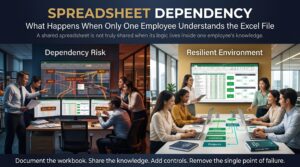
Sometimes the honest answer is that a workbook has outgrown Excel. If dozens of people update it every day, if it feeds critical reporting, or if its logic is too tangled for anyone to explain, it may be time to move the raw data into a database and the reporting into a tool such as Power BI. Even then, Excel usually stays in the picture for analysis, so strong skills still matter. And if only one person really understands the file, our articles on the spreadsheet knowledge trap and spreadsheet dependency are worth a read.
Excel Skills That Prevent Version Chaos
Good Excel version control is partly about process and partly about skill. People who understand tables, linked data, pivot tables and consolidation have much less reason to copy and paste, and that alone prevents a surprising number of duplicate files. If you want to build those skills, there is a pathway for most roles:
- Microsoft Excel Beginner for data entry, formatting and basic formulas.
- Microsoft Excel Intermediate for formulas, functions, charts and data organisation.
- Microsoft Excel Advanced for pivot tables, data linking, consolidation and analysis.
- Excel VBA & Macros Masterclass for automating repetitive file handling.
- Excel for Accountants and Excel for Small Business for finance and reporting work.
- Excel for Project Managers and Excel for HR Professionals for role-specific trackers and reports.
- Excel for Supply Chain Inventory for stock and logistics workbooks.
- MS Office Full Bundle and the MOS Exam Preparation Course for broader Microsoft Office skills and certification.
You can browse every option on our online Excel training courses in Australia page, or read more practical tips on the Excel blog. If your team is also losing time to manual routines, the spreadsheet lifestyle tax shows how much it can really cost.
Excel Courses Across Australia: Learn Online or In Person
Fixing spreadsheet habits works best when the whole team learns together. Training is available live online from anywhere in Australia, and in person in selected cities. Start with your city:
- Excel courses in Melbourne, with a training location in West Melbourne.
- Excel courses in Sydney, with a training location in Surry Hills.
- Excel courses in Brisbane, with a training location in Brisbane City.
- Excel courses in Perth, available live online or in-house.
- Excel courses in Adelaide, available live online or in-house.
- Excel courses in Canberra, available live online or in-house.
You can also see the full locations page, read more about us, check the FAQ, or contact our team on 1300 649 299 to find the right course for your workplace.
Frequently Asked Questions About Excel Version Control
What is Excel version control?
It is the practice of keeping one current, agreed copy of a workbook and being able to trace every change made to it. Good Excel version control means everyone knows which file is live, who changed it and how to restore an earlier version if needed.
Why do Excel files end up with so many versions?
Because Excel makes copying effortless. Emailing attachments, using Save As, keeping local backups and editing in separate copies all create new versions. Without a shared location and clear rules, those copies multiply.
How do I see previous versions of an Excel file?
If the file is saved in OneDrive or SharePoint, you can usually open Version History from the File menu and review or restore earlier versions. The exact options depend on your version of Microsoft 365, so check Microsoft’s help pages if you can’t find it.
What is the best file naming convention for Excel?
Keep it short, consistent and sortable: date first, then a clear description, then a version number, such as 2026-11-30_Sales-Forecast_v03. Avoid words like “final” and “latest”, because they stop being true the moment someone makes another change.
Can several people edit the same Excel file at once?
Yes. When the workbook is stored in OneDrive or SharePoint and opened in a supported version of Excel, multiple people can work in it together through co-authoring. That removes the need to pass copies around and is the simplest single step towards better Excel version control.
How do I stop my team emailing Excel attachments?
Store the workbook in one shared location and send a link instead of the file. Back it up with a simple team rule and a short training session, so the new habit becomes the easy one.
Final Thoughts on Excel Version Control
Nobody enjoys the moment when two people bring different spreadsheets to the same meeting and each one is sure they are right. The good news is that Excel version control is one of the most fixable problems in the workplace. One shared location, a clear owner, a sensible naming habit and a team that knows its tools will solve most of it.
If you’d like your team to work with more confidence and fewer “final_v7” files, explore our Excel courses in Australia or speak with a course advisor today.