





Hard coded numbers in Excel are the quietest way to wreck a spreadsheet. Nothing flashes red. No error message pops up. The totals look tidy, the chart looks sharp, and the report lands in your manager’s inbox. Then someone notices the GST is a few cents out on every line, or the forecast is still running on last year’s exchange rate, and nobody can say how long it has been that way.
If you have ever inherited a workbook and thought, “why don’t these numbers add up?”, this guide is for you. We’ll walk through what hard coded numbers in Excel actually are, how a single hidden value spreads through a whole file, how to find it, and how to fix it so it stays fixed. No jargon, no lecture. Just the stuff that works in real Australian offices.
What Are Hard Coded Numbers in Excel?
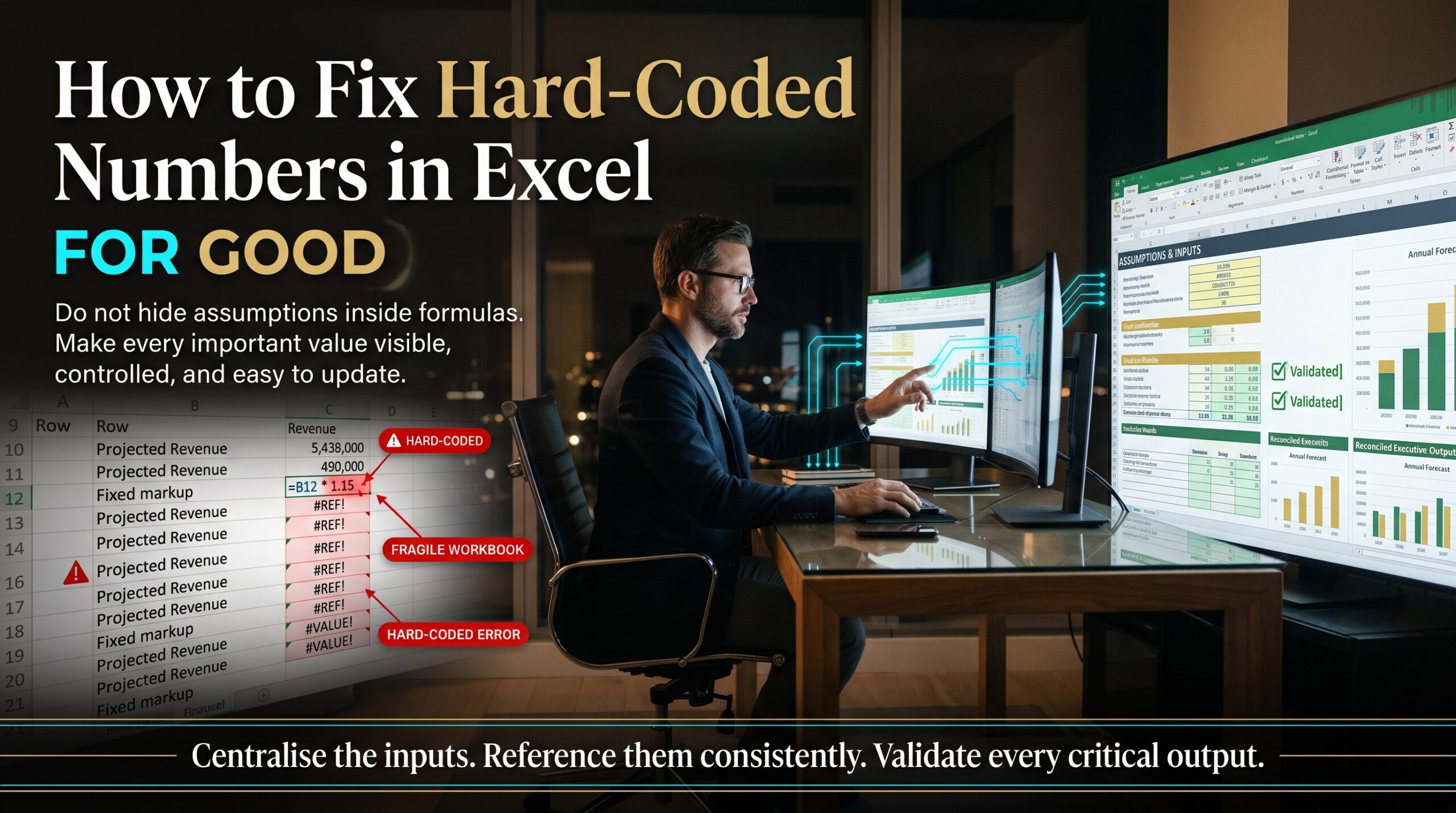
A hard coded number is a figure typed straight into a formula (or pasted over one) instead of sitting in a visible cell that the formula points to. The classic example is adding GST by writing =B2*1.1. It works today. But the 1.1 is now buried inside the formula, and anyone who opens the sheet has to click into every cell to discover it. If you’ve heard the term in programming, it’s the same idea. You can read the general concept on Wikipedia’s page about hard coding.
The better version is =B2*(1+GST_Rate), where GST_Rate lives in one labelled cell. Same answer, completely different risk. With that setup, hard coded numbers in Excel stop being a hidden problem and become a visible input you can check, change and explain.
Why One Hidden Value Can Make a Whole Spreadsheet Wrong
Here’s the thing about spreadsheets: they multiply mistakes faster than they multiply numbers. A formula gets copied down 500 rows, across 12 months, and into three other tabs. If the formula contains a buried constant, every copy carries that constant with it. Hard coded numbers in Excel make this worse, because nobody can see them.
Picture a quoting template (this is an illustrative scenario, but a very familiar one). A business owner types a 25% markup into the price formula. Two years later the supplier costs change and the team agrees on a new margin. Half the staff update the formula in their own copy. The other half don’t know the markup is in there at all. Now the business has two sets of quotes, no audit trail, and a bunch of customers who got different prices for the same job.
That’s the trap. The spreadsheet isn’t broken in an obvious way. It’s wrong in a polite, believable way, and polite errors survive for years. Researchers who study spreadsheet risk have been collecting real examples for decades, and the EuSpRIG spreadsheet horror stories archive is a sobering read for anyone who relies on a workbook for money decisions.
Where Hard Coded Numbers in Excel Like to Hide
Most people look in the obvious place, the formula bar. But hidden values show up in plenty of other spots too:
- Tax and rate constants typed inside formulas, like 1.1 for GST, 0.115 for super, or 0.3 for a tax rate.
- Pasted values over formulas. Someone copied a result and used Paste Values to “lock it in”, and the cell has been frozen ever since.
- Fudge factors and plugs. A “+250” at the end of a formula to make a total match last month’s report.
- Hidden rows, columns and sheets holding inputs that nobody remembers adding.
- White-on-white text or tiny font used to tuck a number out of sight.
- Conditional formatting and data validation rules with typed thresholds, such as “highlight anything over 5000”.
- Chart series and macro code where a value is written directly into the object instead of linked to a cell.
Not every constant is evil, by the way. 12 months in a year or 7 days in a week are fine. The danger is with numbers that can change, such as rates, targets, exchange rates, thresholds and dates. If a number could ever change, it deserves its own cell, which is why not all hard coded numbers in Excel are equally risky.
How to Find Hard Coded Numbers in Excel, Step by Step
You don’t need fancy software to audit a workbook. These built-in tools will catch most problems in a few minutes.
- Show every formula at once. Press Ctrl + ` (the key above Tab) to switch the sheet into formula view. Now scan for stray digits sitting inside formulas.
- Use Go To Special. Press F5, choose Special, then tick Constants and Numbers. Excel selects every typed number on the sheet. If one of them is sitting in the middle of a column of formulas, you’ve probably found a pasted value.
- Search inside formulas. Press Ctrl + F, click Options, and set Look in to Formulas. Search for things like 1.1, 0.1 or *12 to find buried rates.
- Turn on error checking. Excel can flag formulas that don’t match their neighbours. If one cell in a row behaves differently, it’s often a hard coded override.
- Trace the logic. Select a total and use Trace Precedents on the Formulas tab. If the arrows stop at nothing, the value is typed in rather than calculated.
Finding hard coded numbers in Excel is half the job. The other half is deciding where each number should live, and that’s where good spreadsheet habits come in.
How to Fix Hard Coded Numbers in Excel for Good
Once you’ve found the culprits, here’s the cleanup routine for hard coded numbers in Excel that professional modellers and accountants rely on.
1. Build a single assumptions sheet
Create a tab called Assumptions (or Inputs). List every rate, target and threshold in one tidy table with a label, a value, and a note about where it came from. Every formula in the workbook should point back to this tab. When the GST rate or exchange rate changes, you update one cell and the whole file follows.
2. Use named ranges
Naming a cell makes formulas read like sentences. =Price*(1+Markup) is far easier to check than =C5*(1+Assumptions!$B$3). Microsoft explains the steps in its guide to defining and using names in formulas.
3. Lock references with the dollar sign
Absolute references such as $B$3 keep a formula pointing at the right input when you copy it down or across. They’re one of the simplest defences against copy-and-paste drift.
4. Colour code your cells
A common convention in financial modelling is blue text for inputs, black for formulas and green for links to other sheets. It takes ten minutes to set up and saves hours of confusion for the next person.
5. Protect the formulas
Lock formula cells and protect the sheet, leaving only the input cells unlocked. People can still change assumptions, but they can’t accidentally paste over a calculation.
Here’s what removing hard coded numbers in Excel looks like in practice:
| Situation | Before (risky) | After (safe) |
| Adding GST | =B2*1.1 | =B2*(1+GST_Rate) |
| Super calculation | =D5*0.115 | =D5*Super_Rate |
| Currency conversion | =E8*0.66 | =E8*AUD_USD |
| Target check | =IF(F3>5000,”Over”,”OK”) | =IF(F3>Budget_Limit,”Over”,”OK”) |
A 15-Minute Health Check for Any Spreadsheet
Before you send your next workbook to a client, a boss or the ATO’s favourite accountant, run through this quick list to catch hard coded numbers in Excel:
- Switch to formula view and scan for typed numbers inside formulas.
- Run Go To Special > Constants to spot pasted values.
- Unhide every row, column and sheet.
- Check that totals still match when you change one input.
- Move every changeable number to the Assumptions sheet and name it.
- Add a short note on the sheet explaining where inputs live.
That last step is underrated. A two-line note at the top of a tab can save the next person (often future you) from a very long afternoon.
Why Hard Coded Numbers in Excel Are a Business Risk, Not Just a Tech Problem
It’s tempting to treat this as a nerdy formula issue. It isn’t. When a quote, budget, payroll sheet or inventory forecast runs on hard coded numbers in Excel, the business is making decisions on numbers it can’t fully explain. That erodes trust, and trust is what makes people either lean on a spreadsheet or quietly avoid it. We explore that idea in The Spreadsheet Confidence Gap, and the way unofficial workbooks take over real processes in The Shadow Spreadsheet Economy.
The good news is that the fix is mostly about habits, not heavy technology. Teams that learn how to structure inputs, protect formulas and automate repetitive steps (see Excel automation and the copy-and-paste economy) spend less time double-checking and more time actually using the numbers.
Learn to Avoid Hard Coded Numbers in Excel with the Right Course
Reading about how to avoid hard coded numbers in Excel helps. Practising it with an experienced trainer helps a lot more. Excel Courses Online runs practical, job-ready training across Australia, delivered live online or in person. Here’s where to start depending on your role:
- New to formulas? Begin with the Microsoft Excel Beginner course to learn cell references, formatting and clean spreadsheet layout from day one.
- Comfortable with the basics? The Microsoft Excel Intermediate course covers functions, named ranges, tables and data organisation.
- Ready to build models and dashboards? Try the Microsoft Excel Advanced course for pivot tables, scenarios and data analysis.
- Working in finance? The Excel for Accountants course focuses on accurate reporting and reconciliations.
- Running your own business? The Excel for Small Business course helps you build quotes, budgets and cash flow sheets you can trust.
- Managing projects? See Excel for Project Managers for trackers, schedules and budget tools.
- Want to automate? The Excel VBA and Macros Masterclass teaches you to replace manual steps with reliable code.
You can browse everything on the Excel courses page or contact the team on 1300 649 299 to find the right fit.
Excel Training in Your City
Prefer to learn with people in the room, or want a live online class that fits your schedule? Excel Courses Online supports learners in major cities across Australia:
- Excel courses in Melbourne, with a training location in West Melbourne.
- Excel courses in Sydney, with a training location in Surry Hills.
- Excel courses in Brisbane, with a training location in Brisbane City.
- Excel courses in Perth, available live online or in-house.
- Training for Adelaide teams, available live online or in-house.
- Excel courses in Canberra, available live online or in-house.
See all options on the locations page.
Frequently Asked Questions About Hard Coded Numbers in Excel
What are hard coded numbers in Excel?
They are fixed values typed directly into a formula or pasted over one, instead of being stored in a separate, labelled cell. Because they’re hidden inside the calculation, they’re easy to forget and hard to audit.
Is hard coding always a bad idea?
No. Stable facts like 12 months or 7 days are fine. The problem is with numbers that change over time, such as tax rates, exchange rates, targets and thresholds. Those belong in input cells.
How do I find hard coded values in a spreadsheet?
Use Show Formulas (Ctrl + backtick), Go To Special > Constants, and Find with Look in set to Formulas. Together they expose most hard coded numbers in Excel in minutes.
What’s the difference between a hard coded number and an absolute reference?
A hard coded number is the value itself written inside the formula. An absolute reference, like $B$3, points to a cell that holds the value. The reference keeps the input visible and editable.
How can I stop colleagues from overwriting my formulas?
Lock the formula cells, leave input cells unlocked, then protect the sheet from the Review tab. You can add a password if the file is widely shared.
Where can I learn to build reliable spreadsheets in Australia?
Structured training is the fastest route. The team at Excel Courses Online offers beginner to advanced classes, live online or in person, with practical exercises you can use at work the next day.
Final Thoughts: Make the Hidden Visible
One buried number rarely announces itself. It sits quietly inside a formula until the day it matters, and by then it has usually travelled through half the workbook. The cure is simple: put every changeable value where people can see it, name it, protect it and explain it. Do that, and hard coded numbers in Excel stop being a trap and become just another input you control.
Ready to build spreadsheets your team can trust? Talk to Excel Courses Online today and get practical training that pays off from the first formula.