




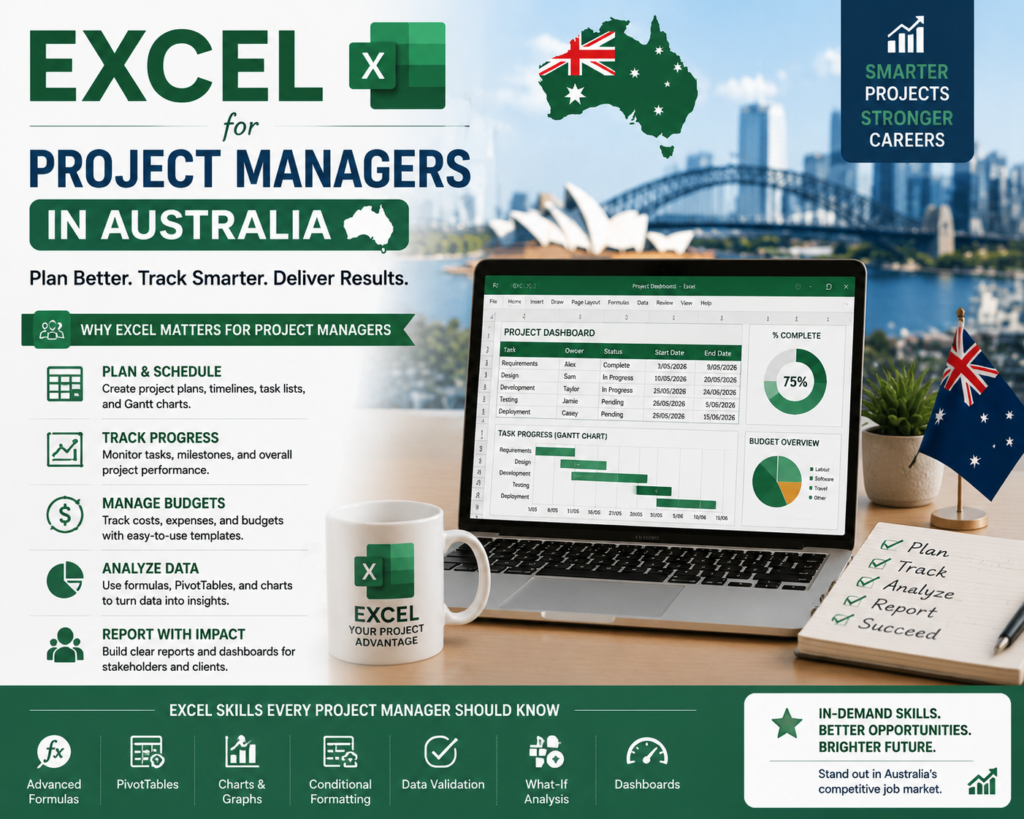
If you’re an Excel for project managers in Australia, you already know the tool does a lot more than crunch numbers. It’s the one piece of software almost every Australian workplace already has, and once you set it up properly, it can carry a surprising amount of a project’s weight planning, tracking, budgeting, reporting, the lot.
Across Sydney, Melbourne, Brisbane, Perth, Adelaide and Canberra, project managers, coordinators and business analysts still reach for Excel first, before opening anything more complex. It’s familiar, it’s flexible, it’s affordable, and everyone on the team already knows how to open it. In this guide, we’ll walk through the templates, Gantt charts, formulas and dashboards that make Excel genuinely useful for project management not just a place to dump a task list.
Microsoft’s own guidance on Excel project management templates points to trackers, timelines, Gantt charts, to-do lists, dashboards, task assignments, issue logs and collaboration features as the backbone of an Excel-based project workflow which is exactly the ground we’ll cover below.
Along the way, you’ll see how Excel supports:
- Project planning and scope definition
- Task tracking and ownership
- Gantt charts and timelines
- Budget monitoring and variance tracking
- Resource allocation
- Risk registers and issue logs
- Stakeholder reporting and dashboards
Why Excel Still Matters for Australian Project Managers in 2026
Excel for project managers in Australia isn’t a fallback option for a huge share of local projects, it’s still the most practical choice on the table. Here’s why it hasn’t been replaced, even with dozens of dedicated project management platforms on the market:
- It’s already sitting on almost every desktop through Microsoft 365, so there’s no new licence to negotiate or new tool to roll out.
- It’s far simpler to pick up than a full project management platform, which matters a lot for small to medium projects that don’t need enterprise-level controls.
- It works just as well for project coordinators, project officers, construction managers, IT project managers and business analysts as it does for senior PMs.
- It flexes to suit Agile, Waterfall or hybrid project environments without forcing a particular methodology on the team.
- It’s the format stakeholders actually want when they ask for a simple schedule, dashboard or report they can open without training.
For Australian project managers juggling multiple stakeholders across different states and time zones, that simplicity is often worth more than an extra feature list.
What Can Project Managers Use Excel For?
Set up properly, Excel becomes a lightweight but genuinely capable project management system. It helps you plan the work, assign responsibility, keep an eye on deadlines, and report progress without switching between five different apps.
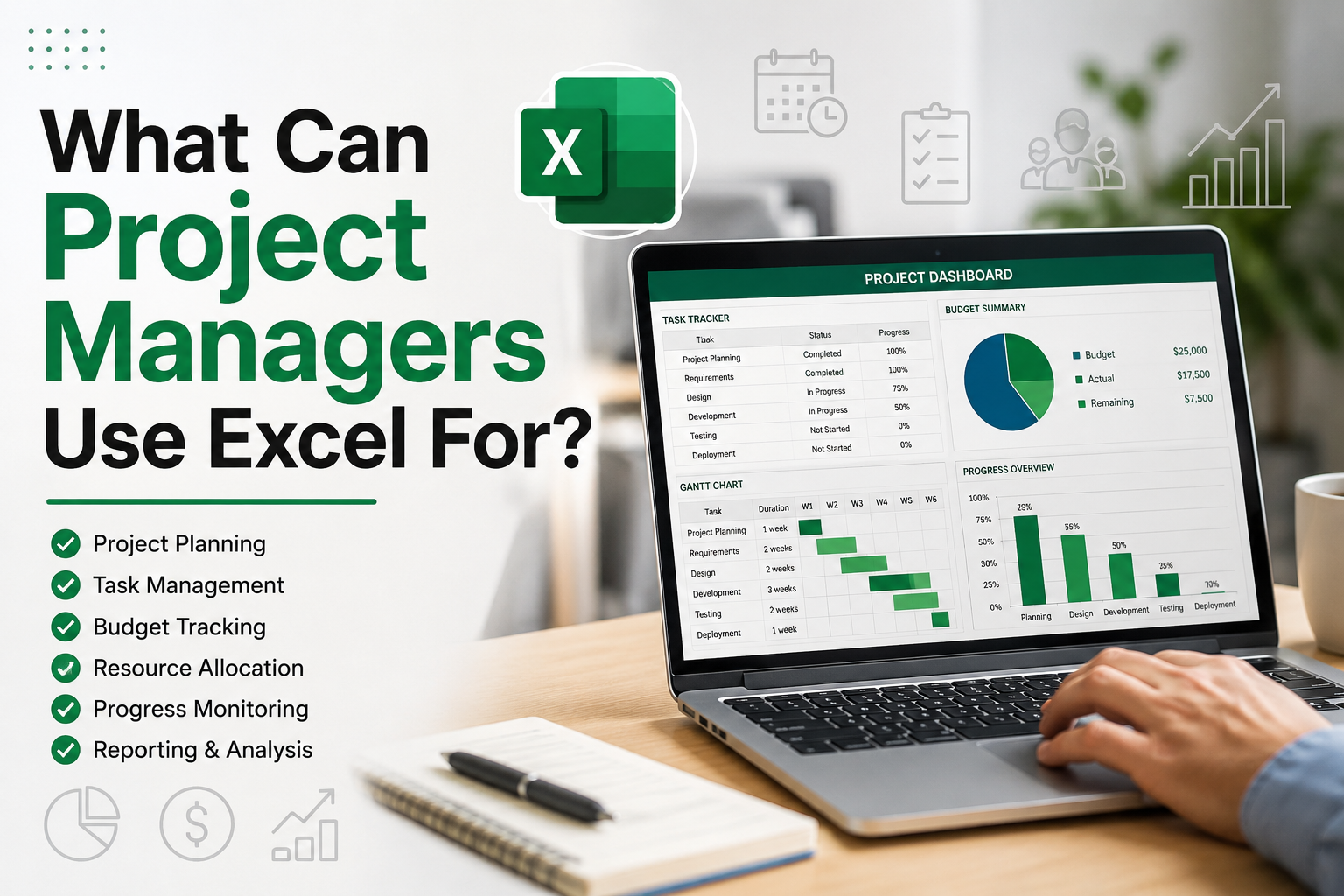
Project Planning
This is where the workbook starts laying out:
- Project scope
- Phases
- Milestones
- Deliverables
- Work breakdown structure (WBS)
Task Tracking
A solid task tracker needs, at minimum:
- Task owner
- Due date
- Status
- Priority
- Completion percentage
Budget Tracking
For cost control, track:
- Planned cost
- Actual cost
- Variance
- Forecast cost
Risk and Issue Management
Keep risk and issue tracking visible with:
- Risk register
- Issue log
- Mitigation actions
- Escalation owner
Project Reporting
For stakeholder-facing reporting, build:
- Status reports
- KPI dashboards
- Progress charts
- Executive summaries
Microsoft also recommends issue log tabs, project trackers and dashboards as standard components of an Excel-based project management workflow, alongside timelines, charts and graphs.
Essential Excel Templates for Project Managers in Australia
These eight templates form the core of almost any Excel project workbook. Set them up once, and you can reuse the structure on every project that follows.
1. Project Plan Template
This is the foundation of the whole workbook every other tab links back to it.
| Column |
|---|
| Task ID |
| Task Name |
| Start Date |
| End Date |
| Duration |
| Owner |
| Priority |
| Status |
| Dependencies |
| Completion % |
2. Gantt Chart Template
A Gantt chart helps project managers visualise timelines, tasks and dependencies at a glance. Microsoft provides Gantt chart templates for Excel that show task progress, timelines, dependencies, risk levels, start dates and completion percentages a good starting point before you customise your own.
3. Risk Register Template
| Column |
|---|
| Risk ID |
| Risk Description |
| Likelihood |
| Impact |
| Risk Rating |
| Mitigation Plan |
| Owner |
| Status |
4. Issue Log Template
| Column |
|---|
| Issue ID |
| Issue Description |
| Date Raised |
| Priority |
| Owner |
| Resolution Plan |
| Due Date |
| Status |
5. Stakeholder Register Template
| Column |
|---|
| Stakeholder Name |
| Role |
| Organisation |
| Influence |
| Interest |
| Communication Method |
| Frequency |
| Owner |
6. Budget Tracker Template
| Column |
|---|
| Cost Category |
| Planned Budget |
| Actual Cost |
| Variance |
| Forecast |
| Comments |
7. Resource Allocation Template
| Column |
|---|
| Resource Name |
| Role |
| Allocated Hours |
| Available Hours |
| Utilisation % |
| Project Phase |
8. Project Dashboard Template
Your dashboard tab should roll everything above into one view, covering:
- Project health
- Budget status
- Schedule status
- Risk level
- Open issues
- Completed tasks
- Upcoming milestones
How to Create a Gantt Chart in Excel
Step 1: Create Your Task List
Start with the basics for every task:
- Task Name
- Start Date
- End Date
- Duration
- Owner
- Status
Step 2: Add a Duration Formula
=End_Date-Start_Date
Step 3: Use Conditional Formatting
Conditional formatting lets you colour cells across the timeline automatically, so the schedule tells its own story without extra commentary.
Step 4: Add Progress Tracking
A completion percentage column keeps the chart honest it should update as work actually gets done, not just as dates pass.
Step 5: Highlight Delayed Tasks
Use colour coding for status categories such as:
- Not Started
- In Progress
- Complete
- Delayed
- At Risk
Microsoft notes that Excel Gantt charts can display planned and actual durations, completion percentage and task timelines side by side, which is exactly what makes them useful in a stakeholder review.
Best Excel Formulas for Project Managers in 2026
1. IF Formula
Use for task status logic:
=IF(TODAY()>Due_Date,”Overdue”,”On Track”)
2. SUMIFS
Use for budget tracking by category, department or project phase:
=SUMIFS(Actual_Costs,Category,”Labour”)
3. COUNTIFS
Use for counting tasks by status:
=COUNTIFS(Status_Range,”Complete”)
4. XLOOKUP
Use for pulling task owner, cost code or stakeholder details from another tab:
=XLOOKUP(Task_ID,Task_ID_Range,Owner_Range)
5. NETWORKDAYS
Use for calculating working days between two dates:
=NETWORKDAYS(Start_Date,End_Date)
6. WORKDAY
Use for calculating a future completion date based on working days:
=WORKDAY(Start_Date,Duration)
7. TODAY
Use for live reporting and overdue task tracking:
=TODAY()
8. Conditional Formatting Formula
Use to highlight overdue tasks automatically:
=AND(Status<>”Complete”,Due_Date<TODAY())
Excel Dashboards for Project Reporting
A good dashboard lets a project manager communicate project health in seconds, not paragraphs. It’s usually the one tab a busy stakeholder actually opens.
Recommended widgets:
- Overall project status
- Schedule variance
- Budget variance
- Task completion %
- Open risks
- Open issues
- Upcoming milestones
- Resource utilisation
Recommended charts:
- Pie chart for task status
- Bar chart for budget vs actual
- Line chart for project progress
- Traffic light status indicators
- Milestone timeline
Excel vs Microsoft Project: Which Should Australian Project Managers Use?
Excel is the better fit for:
- Small to medium projects
- Internal business projects
- Simple reporting
- Budget tracking
- Stakeholder-friendly documents
- Teams already using Microsoft 365
Microsoft Project earns its place for:
- Complex dependencies
- Large programs
- Portfolio management
- Advanced resource levelling
- Enterprise project controls
For most Australian small and medium businesses, Excel project management covers everything day to day without the overhead of running a dedicated Microsoft Project licence across the team.
Excel Project Management Templates by Industry in Australia
Construction Project Management
- Construction schedule
- Site task tracker
- Contractor register
- Defect log
- Budget tracker
IT Project Management
- Sprint tracker
- Release plan
- Issue log
- Change request register
- RAID log
Government and Public Sector Projects
- Status report
- Risk register
- Milestone tracker
- Stakeholder engagement plan
Business and Operations Projects
- Process improvement tracker
- Resource plan
- Cost-benefit tracker
- Implementation schedule
Training and Education Projects
- Course rollout plan
- Learner progress tracker
- Content production schedule
- Delivery calendar
Common Excel Mistakes Project Managers Should Avoid
- Using too many separate spreadsheets instead of one master workbook
- Not protecting formula cells from accidental edits
- Skipping version control on shared workbooks
- Forgetting to update assumptions as the project moves
- Leaving task owners unclear or blank
- Mixing dates, text and formulas in the same column
- Using inconsistent status labels across tabs
- Building dashboards on messy, unstructured source data
Best Practices for Managing Projects in Excel
Keep One Master Workbook
Use separate tabs for:
- Project Plan
- Gantt Chart
- Budget
- Risks
- Issues
- Stakeholders
- Dashboard
- Status Report
Standardise Your Status Labels
Use dropdowns for consistency:
- Not Started
- In Progress
- Complete
- Delayed
- At Risk
- On Hold
Use Data Validation
Dropdown menus cut down on typos and inconsistent entries across the team.
Protect Formula Cells
Lock formula cells so they can’t be overwritten by accident during a busy update.
Use Conditional Formatting
Highlight the things that need attention first:
- Overdue tasks
- High risks
- Budget overruns
- Upcoming milestones
Update Weekly
A short weekly project control routine keeps the whole workbook trustworthy stale data is the fastest way to lose stakeholder confidence in an Excel-based system.
Free Excel Project Management Template Checklist
Use this as a quick audit of your own workbook:
- Project plan template
- Gantt chart template
- Task tracker
- Budget tracker
- Risk register
- Issue log
- Stakeholder register
- Resource planner
- Change request log
- Project status report
- Dashboard template
- Lessons learned register
Final Thoughts: Is Excel Enough for Project Management in 2026?
Excel remains one of the most useful tools for Australian project managers in 2026, especially for planning, scheduling, tracking and reporting. Larger, more complex programs may eventually need dedicated project management software but for most small to medium projects, Excel is still more than enough when it’s backed by strong templates, reliable formulas and a consistent reporting rhythm.
If you want to improve your project reporting, start with a simple Excel project plan, add a Gantt chart, include the key formulas above, and build a dashboard your stakeholders can understand at a glance.
FAQs About Excel for Project Managers in Australia
Is Excel good for project management?
Yes. Excel is useful for task tracking, budgets, schedules, dashboards, Gantt charts, risk registers and project reporting which covers most of what a small to medium project needs.
Can I create a Gantt chart in Excel?
Yes. You can build a Gantt chart in Excel using templates, stacked bar charts or conditional formatting. Microsoft also offers ready-made Gantt chart templates for Excel-based project scheduling.
What Excel formulas should project managers know?
Project managers should be comfortable with IF, SUMIFS, COUNTIFS, XLOOKUP, NETWORKDAYS, WORKDAY, TODAY and conditional formatting formulas.
Is Excel better than Microsoft Project?
Excel suits simple and medium-sized projects well. Microsoft Project is the better choice for complex programs that need advanced dependencies and resource management.
What templates should a project manager use in Excel?
A solid starting set includes a project plan, Gantt chart, risk register, issue log, budget tracker, stakeholder register, resource plan and dashboard.
Call to Action
Want to manage projects more confidently in 2026?
Explore our Excel, Microsoft Project and project management training courses designed for Australian professionals in Sydney, Melbourne, Brisbane, Perth, Adelaide and Canberra.