




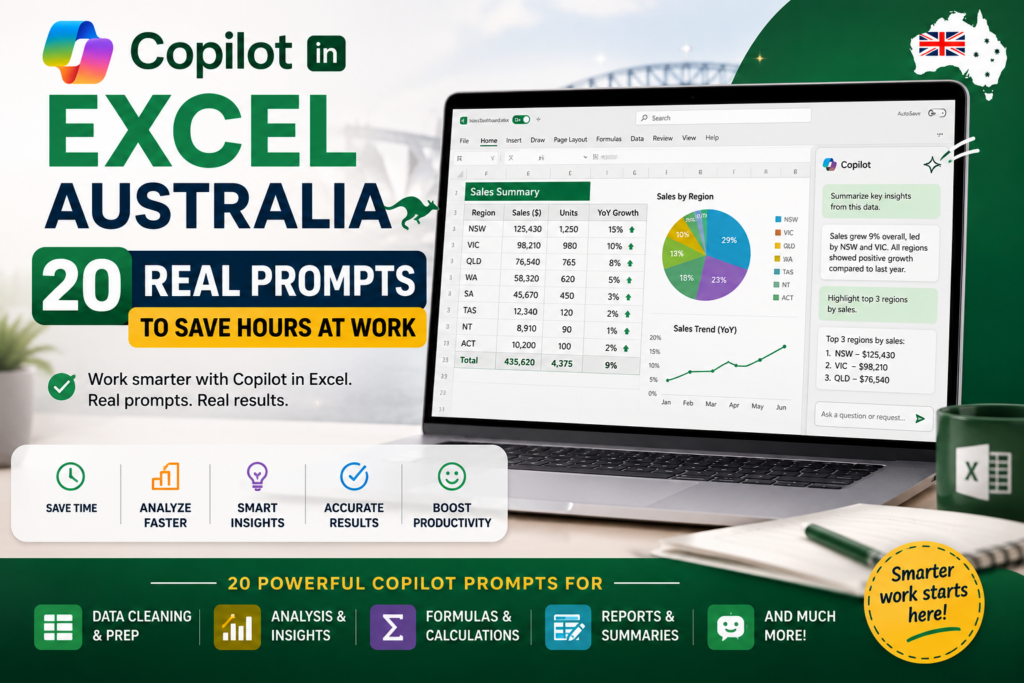
Copilot in Excel Australia has moved well past the “interesting preview feature” stage. It’s now sitting inside real spreadsheets used by finance teams in Sydney, admin staff in Melbourne, and data analysts in Brisbane quietly cutting hours off tasks that used to mean formula hunting, manual formatting, and copy-pasting between tabs. If you’ve opened Excel recently and noticed the small Copilot icon in the ribbon, this guide is for you.
Below you’ll find 20 real, tested Copilot prompts you can paste straight into Excel today, an honest look at what Copilot can (and can’t) do, and where to build the underlying Excel skills that make Copilot actually useful. If you’d like personalised guidance or training, contact us on 1800 159 151. Copilot in Excel Australia only saves time when the person using it already understands what a good answer looks like.
Why Australian Workplaces Are Paying Attention to Copilot in Excel
Most Australian offices run on spreadsheets rosters, budgets, client trackers, sales pipelines. Copilot in Excel appeals because it removes the slowest part of that work: figuring out the formula, the pivot layout, or the chart type. Instead of searching “how to calculate variance in Excel” for the tenth time, a person can type a plain-English request and get a working formula or summary back in seconds.
For teams in Melbourne, Sydney and Brisbane juggling end-of-month reporting, this matters more than it sounds. A five-minute task repeated fifty times a month adds up and that’s exactly the kind of repetitive work Copilot is designed to absorb.
What Copilot in Excel and Agent Mode Actually Do
Copilot in Excel works from natural-language prompts typed into a side panel. You describe what you want a formula, a chart, a cleaned-up column, a summary of trends and Copilot proposes it directly in your sheet, without you needing to remember the exact syntax.
Excel Agent Mode goes a step further: instead of one prompt producing one result, it can carry out a short sequence of steps on its own clean a range, build a helper column, then chart the outcome checking in with you along the way. Microsoft documents the current capabilities and rollout in its own
Copilot in Excel support documentation, which is worth bookmarking since features are still expanding.
20 Real Copilot Prompts You Can Use Today
These Microsoft Copilot Excel prompts are grouped by the kind of work they save time on. Copy them as-is, or swap in your own column names and ranges.
Data Cleaning & Preparation
- “Remove duplicate rows based on the Customer ID column and highlight what changed.”
- “Split the Full Name column into First Name and Last Name.”
- “Standardise all dates in column C to DD/MM/YYYY format.”
- “Find blank cells in this range and flag them in red.”
Formulas & Analysis
- “Write a formula that calculates month-on-month growth for the Revenue column.”
- “Create a formula to flag any invoice over 30 days overdue.”
- “Show me the top 5 products by total sales this quarter.”
- “Calculate the average order value by region.”
Dashboards & Visuals
- “Build a PivotTable summarising sales by region and month.”
- “Create a chart comparing budget vs actual spend for each department.”
- “Turn this table into a simple one-page dashboard with key totals at the top.”
- “Add conditional formatting to highlight any KPI below target.”
Reporting & Summaries
- “Summarise the key trends in this sales data in three bullet points.”
- “Write a short summary I can paste into an email to my manager about this month’s numbers.”
- “Compare this quarter’s results to last quarter and explain the biggest change.”
- “Draft a one-paragraph executive summary of this report.”
Finance & Forecasting
- “Forecast next quarter’s revenue based on the last 12 months of data.”
- “Calculate a simple cash flow projection from these income and expense columns.”
- “Identify any expense categories that increased by more than 10% since last year.”
- “Build a break-even calculation using the costs and price in this sheet.”
Copilot Prompts by Job Role: Finance, Admin, and Data Teams
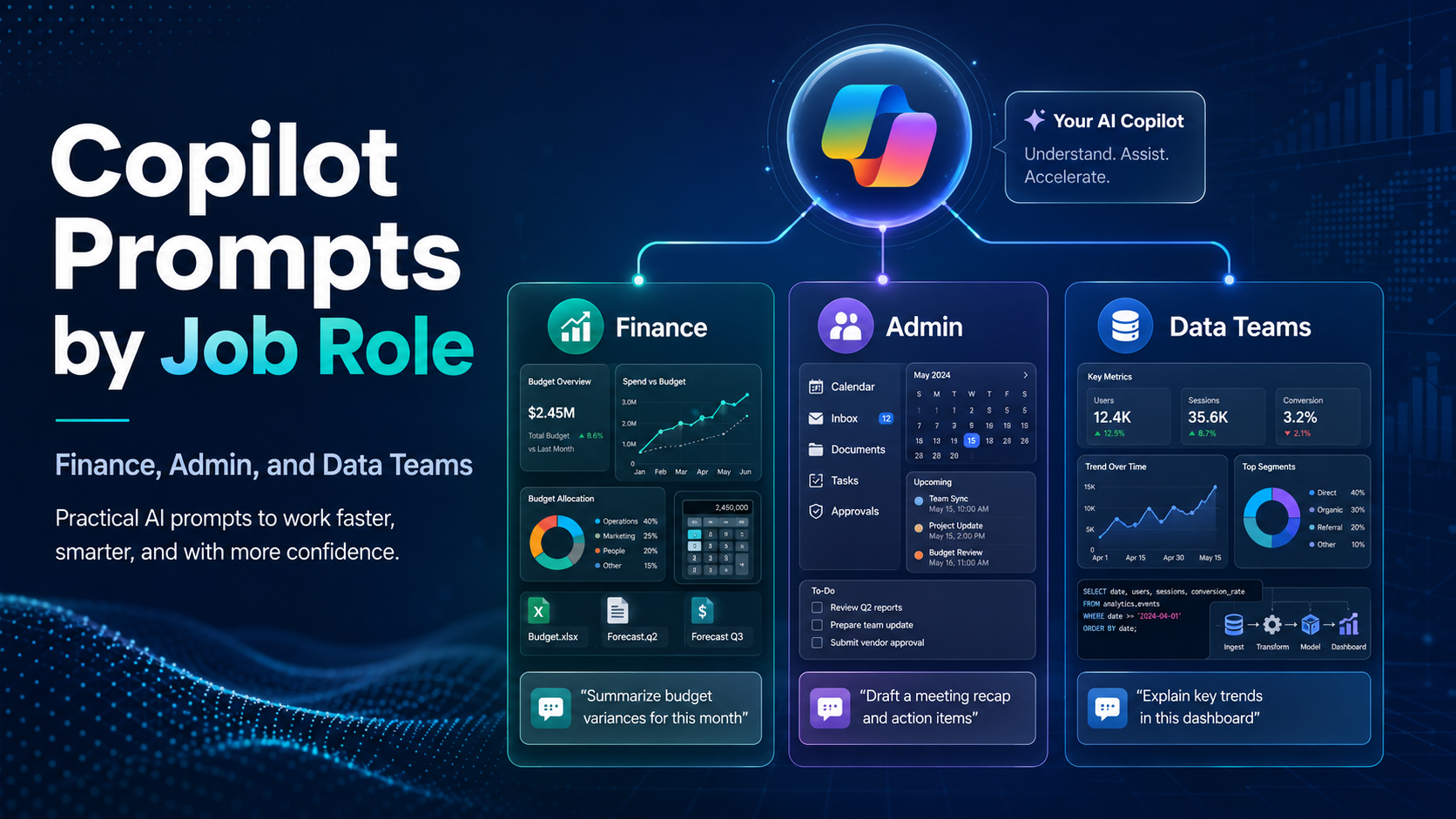
Copilot Excel for finance teams tends to focus on forecasting, variance analysis and month-end reconciliation prompts the finance and forecasting prompts above are a good starting point. Admin and operations staff typically get the most value from the data cleaning and reporting prompts, since so much admin work is really just tidying and summarising information. Data analysts, meanwhile, lean on the dashboard and PivotTable prompts to speed up first-draft analysis before refining it manually.
Across all three, the pattern is the same: Excel automation with AI removes the mechanical first draft, but someone still needs to sense-check the output, understand the underlying logic, and know when a formula or chart is actually telling the right story.
Can AI Replace the Need to Learn Excel Skills?
This is the honest answer to a question a lot of people are quietly asking: can AI replace Excel skills? Not really and Australian employers are signalling exactly that. Job ads for admin, finance and data roles still list Excel skills for jobs Australia as a core requirement, because Copilot suggests answers, but it doesn’t know your business context, catch its own mistakes, or explain a spreadsheet to your manager in a meeting.
If you can’t tell whether a Copilot-generated formula or PivotTable is actually correct, you can’t safely rely on it. That’s why an Excel Copilot course Australia approach learning core Excel first, then layering AI prompts on top tends to work far better than treating Copilot as a shortcut around learning the tool at all.
Where to Build These Skills: Excel Courses Across Australia
If you want to get comfortable with both traditional Excel and Copilot in Excel Australia, structured training is still the fastest route.
At Excel Courses Online Australia, courses run from beginner Excel course Australia level right through to advanced Excel course Australia content covering Power Query, PivotTables, dashboards and now AI-assisted workflows.
Popular starting points include:
- Excel course Melbourne — instructor-led and online Excel training Melbourne, from beginner to advanced.
- Excel course Sydney — Excel training Sydney covering formulas, PivotTables and Excel for finance Sydney workflows.
- Excel course Brisbane — Excel classes Brisbane and dashboard training Brisbane for reporting-heavy roles.
- Power Query course Australia — for anyone doing repetitive data cleaning before Copilot ever gets involved.
- Excel dashboard course Australia — build the PivotTable and dashboard skills Copilot prompts rely on.
Whether you’re after a one day Excel course Australia refresher, self paced Excel course Australia options, or corporate Excel training Australia for a whole team, pairing that training with the prompts above is the fastest way to actually save hours at work not just talk about it.
For background on Microsoft’s own AI roadmap for Excel, the
Microsoft 365 Copilot product page is a useful, regularly-updated reference alongside your training.
Copilot in Excel Australia: Frequently Asked Questions
Is Copilot in Excel available in Australia right now?
Yes. Copilot in Excel is rolling out to Microsoft 365 subscribers in Australia, including Copilot Pro and Microsoft 365 Copilot business plans. Availability depends on your specific licence, so check the Copilot in Excel support documentation for the current rollout status on your plan.
Do I need to know Excel before using Copilot?
You don’t need to be an expert, but basic Excel skills make Copilot far more useful. You still need to recognise whether a formula, PivotTable, or chart Copilot produces is actually correct for your data. This is exactly why an Excel Copilot course Australia approach covering fundamentals first, then AI prompts outperforms jumping straight into Copilot with no Excel background.
What is Excel Agent Mode and how is it different from Copilot prompts?
A single Copilot prompt produces one result a formula, a chart, a cleaned column. Excel Agent Mode can chain several steps together on its own, such as cleaning data, building a helper column, then charting the outcome, checking progress with you along the way. Think of Agent Mode as Copilot handling a small project, rather than answering one question.
Can Copilot in Excel replace a data analyst or finance team?
No. Copilot speeds up first drafts cleaning, formulas, summaries, forecasts but it doesn’t understand your business context, catch every error, or make judgement calls about what a number actually means. Can AI replace Excel skills entirely? Not in any Australian workplace we’ve seen. It replaces repetitive manual steps, not the person deciding what those steps should be.
Is an Excel certification still worth it in Australia if I use Copilot?
If anything, it’s worth more. Excel certification worth it Australia is a common search because employers want proof you understand the tool Copilot is built on top of. A certificate backed by real Power Query, PivotTable and dashboard skills signals you can both use Copilot and verify what it produces which is increasingly what finance, admin and data analyst job ads are asking for.
What’s the fastest way to get good at Copilot prompts in Excel?
Practice with your own data rather than generic examples. Start with the data cleaning and formula prompts above on a real spreadsheet from your job, then move on to dashboards and forecasting once you’re comfortable. Pairing this with a structured Excel course Australia online, self paced, or instructor led cuts the trial-and-error time down significantly.
Are these Copilot prompts different for Melbourne, Sydney, or Brisbane workplaces?
The prompts themselves work the same everywhere Copilot doesn’t change by city. What differs is context: finance teams in Sydney lean more on forecasting and variance prompts, admin-heavy Melbourne offices get more value from data cleaning and reporting prompts, and Brisbane teams doing project reporting often start with the dashboard and PivotTable prompts. Local training, like Excel training Melbourne or Excel classes Brisbane, tends to build examples around these role differences.
Final Thoughts
Copilot in Excel Australia isn’t replacing Excel skills it’s raising the bar for what’s expected once you have them. The 20 prompts above will save real time on data cleaning, formulas, dashboards, reporting and forecasting, but they work best in the hands of someone who already understands what Excel is doing under the surface. Build that foundation first, in Melbourne, Sydney, Brisbane or online, and Copilot becomes a genuine multiplier rather than a guessing game.