




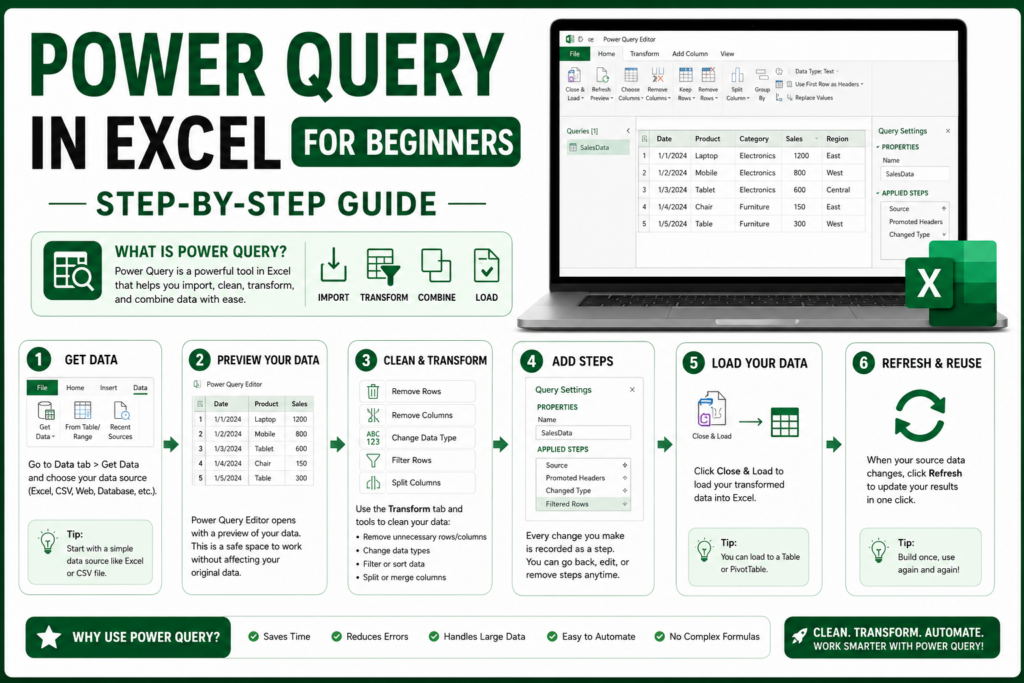
Power Query in Excel is the single biggest time-saver most Excel users never turn on. If you use Excel every day, you already know the real problem isn’t analysing data it’s cleaning it. Most Excel users spend far more time fixing messy columns, removing duplicates, and reformatting exports than they spend actually looking at the results. That’s exactly the gap Power Query in Excel was built to close. Instead of writing complicated formulas every time a new file lands in your inbox, Power Query in Excel lets you import data, shape it once, and refresh it automatically the next time the data changes.
Whether you work with sales reports, client lists, invoices, or CSV exports, Power Query in Excel can help you clean and transform data faster without relying on complicated formulas. It’s one of the most underused tools in Excel, and for beginners especially, learning Power Query in Excel can completely change how reporting work gets done across Australian workplaces.
What Is Power Query in Excel?
Power Query in Excel is the built-in Get & Transform tool that lets you connect to external data sources, import information from files like CSVs or other workbooks, and then reshape that data removing columns you don’t need, fixing data types, and merging tables together. Once your query is set up, you can load it straight into Excel where it’s ready for charts and reports.
In simple terms, Power Query in Excel handles the messy preparation work so formulas and PivotTables can focus on analysis instead of cleanup.
Why Beginners Should Learn Power Query in Excel Instead of Relying Only on Formulas
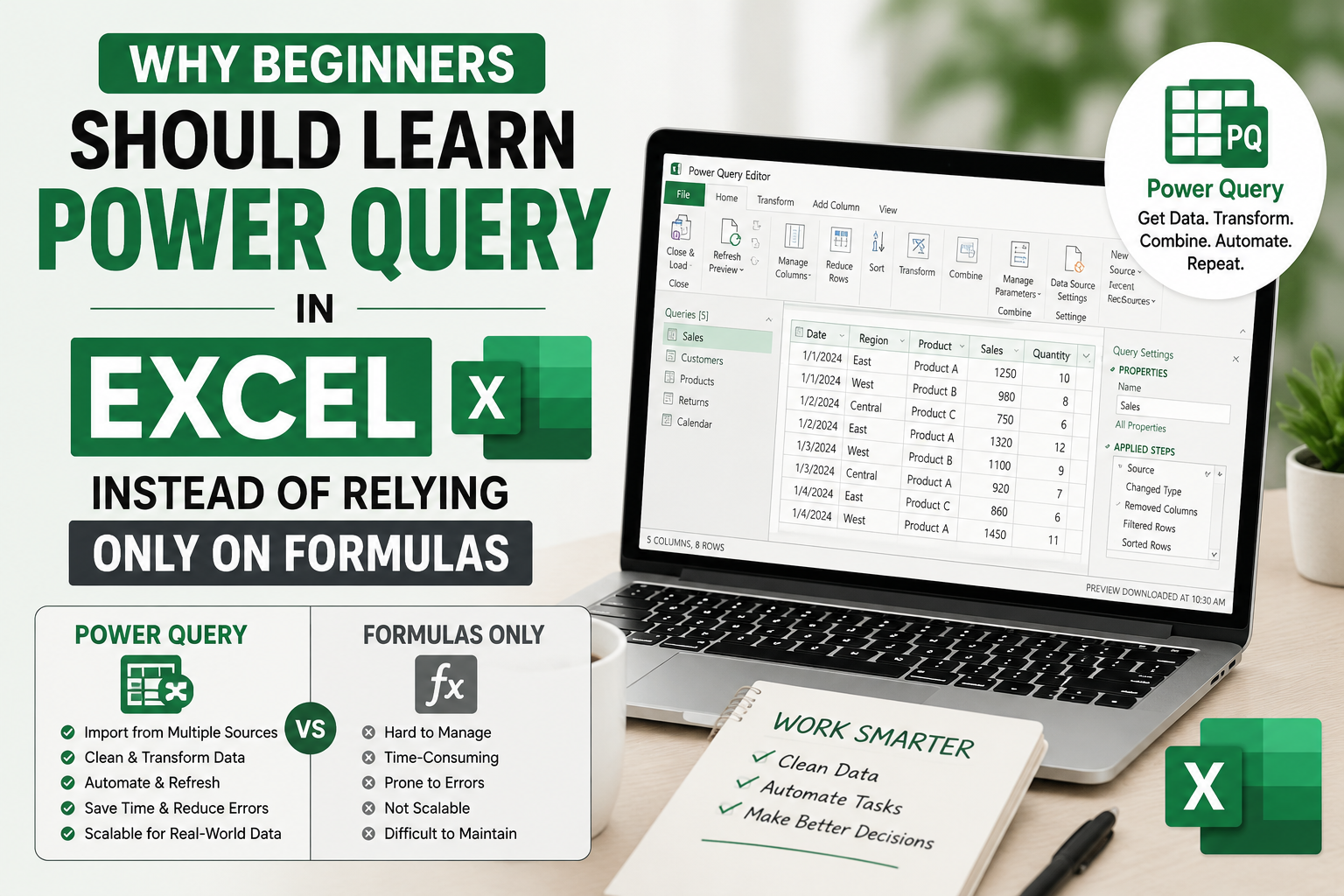
Formulas are powerful, but they weren’t built for repetitive cleanup. Every time a new report lands, formula-based cleaning usually means redoing the same manual steps from scratch. Power Query in Excel works differently it remembers every transformation step you apply, so the next time you get an updated file, you simply refresh the query instead of rebuilding the whole sheet.
- Less manual cleanup work every time new data arrives
- Better suited to recurring, repeatable reports
- Beginner-friendly, since most actions happen through clicks in the interface rather than complex formula writing
Where to Find Power Query in Excel
You don’t need any add-ins to access Power Query in Excel it’s already built into modern versions of Excel. Here’s how to get there:
- Open Excel
- Go to the Data tab
- Click Get Data or From Table/Range
- This launches the Power Query Editor, where the actual cleaning happens
Step-by-Step: How to Clean Data with Power Query in Excel
Here’s a practical beginner workflow you can follow with almost any messy dataset using Power Query in Excel.
Step 1 — Import Your Data
Connect to a CSV file, a workbook table, or another external source. Power Query in Excel is specifically designed to pull in data from these kinds of sources without manual copy-pasting.
Step 2 — Remove Unwanted Columns
Strip out any columns you don’t actually need for your report. This keeps the dataset focused and easier to work with.
Step 3 — Change Data Types
Make sure dates, numbers, and text are recognised correctly. Wrong data types are one of the most common reasons reports and calculations break.
Step 4 — Remove Duplicates
Clear out duplicate rows so your dataset is clean and genuinely ready for analysis.
Step 5 — Split Columns or Merge Tables
Split a column by delimiter, or combine multiple tables together when you need to bring different datasets into one place for reporting.
Step 6 — Load the Clean Data Back into Excel
Once your data is shaped the way you want it, load the query into Excel so it’s ready for charts, PivotTables, and reports.
Step 7 — Refresh When New Data Arrives
This is where Power Query in Excel really earns its place in your workflow. When a new version of the same report comes in, you don’t redo the cleanup you just hit refresh, and every step you set up runs automatically.
Common Data Cleaning Tasks You Can Do with Power Query in Excel
- Remove duplicate rows
- Standardise text and formatting
- Split one messy column into multiple clean columns
- Merge multiple tables into one dataset
- Refresh repeated reports instead of redoing the work manually
Real-World Use Cases for Power Query in Excel in Australia
Power Query in Excel isn’t just for data analysts it’s genuinely useful for admin teams, finance support staff, job seekers, office teams, and anyone responsible for reporting. A few everyday examples:
- Cleaning monthly sales exports before reporting
- Preparing contact lists before analysis
- Combining invoice data from multiple sheets
- Fixing messy CSV files before building dashboards
If you want a broader look at how this fits into career growth, see our guide on Excel Skills for Jobs in Australia, or explore How to Use Copilot in Excel for a look at modern, AI-assisted Excel workflows.
Power Query in Excel vs Traditional Excel Formulas
Formulas still matter they’re essential for calculations, totals, and analysis. But when it comes to cleaning, reshaping, and combining raw data, Power Query in Excel is simply a better fit. Think of it this way: Power Query in Excel gets your data ready, and formulas do the thinking once it’s clean.
Why Power Query in Excel Is a Valuable Skill in Australia
If you’ve already learned Excel basics, Power Query in Excel is the natural next step. As workplaces across Australia rely more on regular reporting and dashboards, the ability to prepare clean, refreshable data quickly is becoming a genuinely valuable skill not just for analysts, but for anyone handling spreadsheets as part of their role.
Once you’re comfortable with the basics, you can build on it with our guide to creating a Professional Excel Dashboard, the natural next step after mastering Power Query in Excel.
Conclusion
If you already know basic Excel formulas, learning Power Query in Excel can help you clean data faster, automate repeated steps, and build more reliable reports in real workplaces across Australia. It’s a practical, beginner-friendly skill that pays off the very first time you reuse a query instead of starting from scratch.
FAQs About Power Query in Excel
What is Power Query in Excel?
It’s Excel’s built-in tool for importing, cleaning, reshaping, and refreshing data without needing complex formulas.
Is Power Query in Excel easy for beginners?
Yes. Most actions are done by clicking through the interface rather than writing formulas, which makes Power Query in Excel approachable even for new users. See Microsoft’s own getting started guide for more detail.
Where is Power Query in Excel?
You’ll find it under the Data tab, using either Get Data or From Table/Range.
Can Power Query in Excel remove duplicates?
Yes, removing duplicate rows is one of its most common and useful features.
Can Power Query in Excel merge tables?
Yes, it can combine multiple tables into a single, clean dataset for reporting.
What is the difference between Power Query in Excel and Excel formulas?
Formulas are best for calculations and analysis, while Power Query in Excel is built for importing, cleaning, and reshaping data before that analysis even begins.
Can Power Query in Excel refresh data automatically?
Yes — once your query is set up, refreshing it reapplies every cleaning step automatically on new data.
Is Power Query in Excel worth learning in Australia?
Definitely. As more Australian workplaces from Sydney to Melbourne, Brisbane, Perth, and Adelaide lean on regular reporting, Power Query in Excel has become a practical, in-demand skill for office and finance teams alike.
What kind of files can Power Query in Excel import?
It supports a wide range of sources, including CSV files, Excel workbooks, and other external data connections.
Do I need coding to use Power Query in Excel?
No. Power Query in Excel is designed for everyday users to import and reshape data through the interface, though advanced users can go deeper with its formula language later on.