




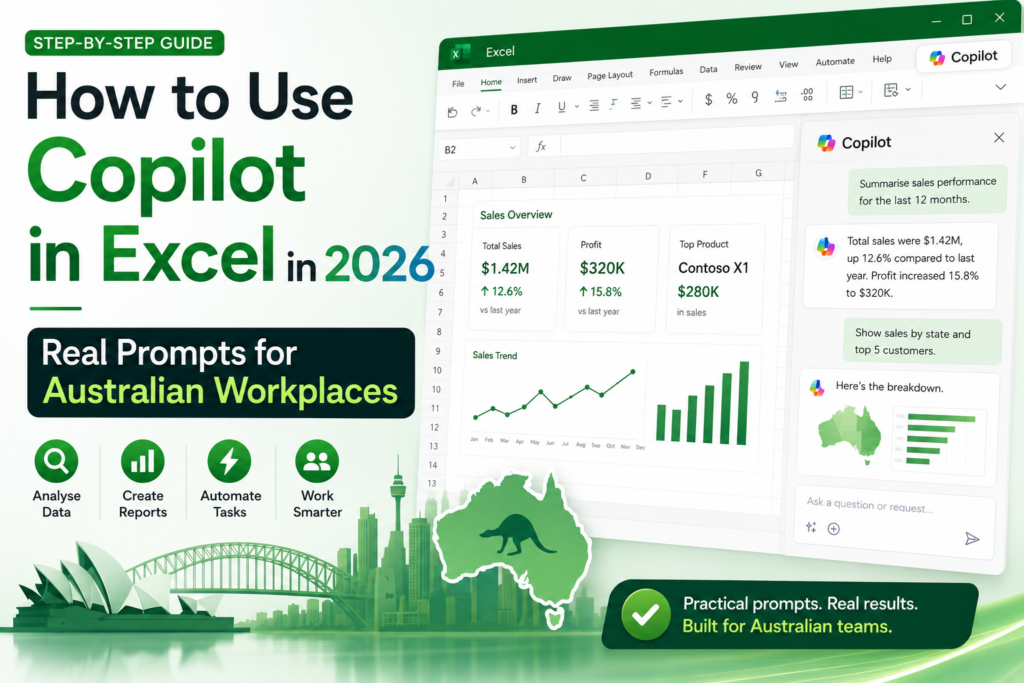
How to Use Copilot in Excel in 2026: Real Prompts for Australian Workplaces
If you’ve ever spent hours sorting through spreadsheets, manually building formulas, or trying to make sense of messy data you’re not alone. Across Australian workplaces, from busy finance teams in Sydney to admin officers in Brisbane and small business owners in Perth, Excel has always been the go-to tool. But in 2026, something has changed.
Microsoft Copilot is now embedded directly inside Excel, and it’s reshaping how everyday Australians work with data. Whether you’re an accountant in Melbourne, a project coordinator in Adelaide, or a student in Canberra just starting out Copilot in Excel is worth understanding.
This guide walks you through what it is, what’s new in 2026, real prompts you can use today, and honest advice on whether it’s right for you.
What Is Copilot in Excel?
Copilot in Excel is Microsoft’s AI assistant built into the Excel interface. Instead of writing complex formulas or manually formatting tables, you simply type what you want in plain English and Copilot does the work.
Think of it this way: traditionally, you’d need to know the exact syntax for a VLOOKUP or a PivotTable to get the job done. With Copilot, you can just type “Create a monthly summary from this sales data” and it figures out the rest.
It’s not magic it works best when your data is clean and well-structured but for most routine spreadsheet tasks in Australian workplaces, it’s a genuine time-saver.
What’s New in Copilot in Excel in 2026?
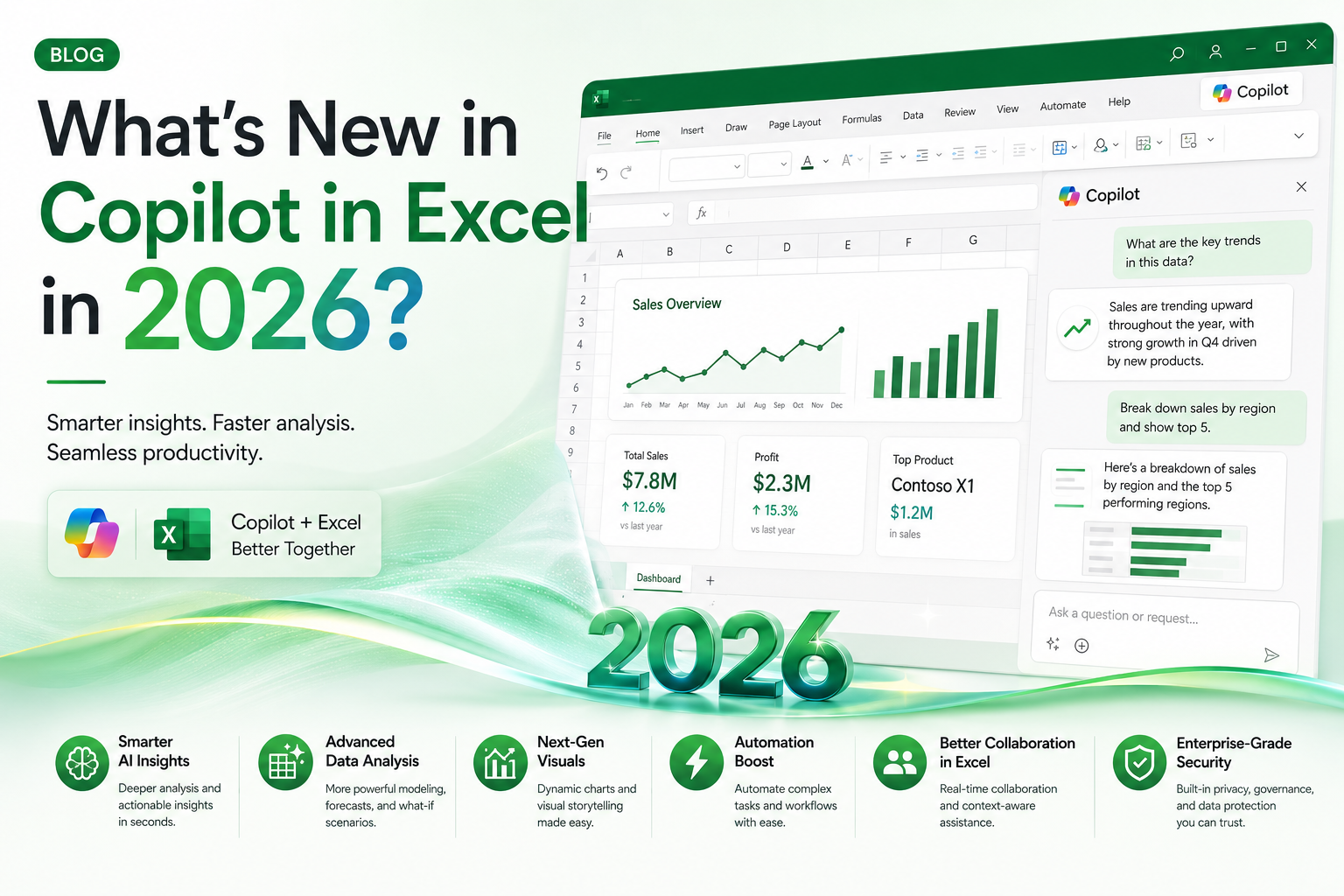
Microsoft has rolled out significant upgrades to Copilot in Excel this year. Here’s what’s changed:
- Agentic capabilities: Copilot can now carry out multi-step tasks on its own, not just answer one question at a time.
- Edit with Copilot: You can now ask Copilot to directly modify your spreadsheet not just suggest changes.
- Work IQ context: Copilot can now factor in broader organisational context when helping you with tasks.
- Office Scripts improvements: Copilot can generate and run Office Scripts automatically for repetitive workflows.
- Better multi-step task handling: Complex requests that previously required multiple prompts can now be handled in one.
These features are generally available as of April 2026 and are already being used in Microsoft 365 Business and Enterprise plans across Australia.
Who Should Use Copilot in Excel?
Copilot in Excel isn’t just for data analysts or IT professionals. It’s genuinely useful for a wide range of Australians, including:
- Admin workers managing rosters, schedules, and records in Melbourne or Sydney offices
- Finance teams handling budgets, payroll, and reporting across Queensland and NSW
- Project coordinators tracking timelines and resources in Perth or Adelaide
- Small business owners in regional Australia who wear multiple hats
- Students and job seekers wanting to build practical Excel skills for the job market
- Data and reporting staff across government, healthcare, and education sectors
If your role involves working with numbers, tables, or reports Copilot in Excel can help.
10 Real Prompts You Can Use in Copilot in Excel
Here are ten practical prompts that work well for everyday Australian workplace tasks. Simply type these into the Copilot chat panel inside Excel:
- “Summarise the sales trends in this sheet” Great for monthly or quarterly sales reviews.
- “Highlight duplicate rows and clean the data” Perfect for fixing messy data imports.
- “Create a monthly sales chart from this table” Produces a visual chart in seconds.
- “Explain this formula in simple words” Ideal for beginners learning Excel.
- “Show the top 5 products by revenue” Quick ranking without manual sorting.
- “Build a pivot summary from this table” Automates one of Excel’s most powerful but complex features.
- “Find missing values and suggest fixes” Helps with data quality checks.
- “Create a forecast for the next 3 months” Useful for inventory and financial planning.
- “Compare performance by region” Helpful for national businesses with data across states.
- “Turn this dataset into an executive summary” Saves time on reporting and stakeholder presentations.
The more specific your prompt, the better the results. Vague requests lead to generic outputs.
Best Use Cases for Australian Workplaces
Australian businesses, particularly in industries like retail, healthcare, construction, and professional services, have specific spreadsheet needs. Copilot in Excel delivers real value in these everyday scenarios:
- Payroll tracking: Quickly summarise hours worked and calculate weekly pay.
- Budgeting: Build and monitor departmental or project budgets with minimal manual effort.
- Reporting: Turn raw data into polished reports for management or clients.
- Inventory management: Track stock levels, flag low quantities, and spot patterns.
- Staff rosters: Organise and adjust shifts across multiple locations or departments.
- Sales reporting: Compare performance by product, region, or rep automatically.
Copilot in Excel vs Traditional Excel Skills
- A common question is: “Does Copilot replace the need to learn Excel?” The honest answer is no but it significantly changes what you need to prioritise.
- Copilot speeds up: formula creation, chart generation, data cleaning, summarisation, and pivot tables. These used to take significant time and skill.
- But you still need to understand: how data should be structured, how to interpret outputs, when results look wrong, and how to apply business logic to AI suggestions.
- Excel fundamentals still matter. Copilot is a co-pilot, not an autopilot. The best users in 2026 are those who combine solid Excel knowledge with smart AI prompting.
Common Mistakes When Using Copilot in Excel
Even with AI assistance, it’s easy to go wrong. Watch out for these common pitfalls:
- Dirty data: Copilot performs poorly with inconsistent formatting, merged cells, or missing headers. Clean your data first.
- Vague column headings: Columns labelled “Column A” or “Data1” confuse the AI. Use clear, descriptive names.
- Asking vague prompts: “Make this better” gives unhelpful results. Be specific about what you want.
- Not checking AI output: Always review what Copilot produces before sharing or acting on it.
- Over-relying on generated formulas: If you don’t understand a formula Copilot creates, ask it to explain or learn it yourself.
Is Copilot in Excel Worth It for Beginners?
If you’re just starting out with Excel, Copilot can be a great learning companion but it’s not a shortcut to skip learning the basics.
Pros:
- Reduces the intimidation factor of complex formulas
- Helps beginners see what Excel can do
- Saves time on routine tasks while you’re still learning
Cons:
- Requires a Microsoft 365 subscription (not free)
- Can mask gaps in understanding if relied on too heavily
- Still requires structured data and clear prompts to work well
Bottom line: Copilot in Excel is best seen as a productivity tool for those already working in Microsoft 365 not a replacement for building genuine Excel skills.
Final Thoughts
Copilot in Excel is one of the most practical AI tools available in Australian workplaces today. It’s not hype it genuinely speeds up real tasks that people in Melbourne, Sydney, Brisbane, Perth, Adelaide, and Canberra do every single day.
But the professionals who will get the most out of it are those who pair AI capabilities with a solid foundation in Excel fundamentals. The formula hasn’t changed: learn the skills, then use the tools to work smarter.
Ready to build your Excel skills alongside AI? Explore our Excel courses designed for Australian workplaces from beginners to advanced users. Whether you’re in a corporate office or running your own business, we have training that fits your schedule and goals.
Frequently Asked Questions
What is Copilot in Excel?
Copilot in Excel is an AI assistant built into Microsoft Excel, available through Microsoft 365 subscriptions. It lets you type plain-English instructions to perform tasks like summarising data, creating charts, writing formulas, and cleaning spreadsheets.
How do I use Copilot in Excel?
Open Excel, click the Copilot button in the Home tab ribbon (you’ll need a Microsoft 365 Business or Enterprise plan), and type your request in the chat panel. Make sure your data is in a formatted table for best results.
Is Copilot in Excel available in Australia?
Yes. Copilot in Excel is available in Australia as part of Microsoft 365 Business Standard, Business Premium, and Enterprise plans. It’s accessible on desktop, web, and via Microsoft 365 apps.
Can Copilot create formulas in Excel?
Yes. Copilot can write formulas based on plain-English descriptions. You can say something like “Calculate the total sales for each region” and it will generate the appropriate formula. Always verify the output before using it in critical data.
Is Copilot in Excel good for beginners?
It can be helpful for beginners, but it works best when paired with a basic understanding of Excel. Without knowing how Excel works, it can be hard to judge whether Copilot’s output is correct.
What are the best prompts for Copilot in Excel?
The best prompts are specific and task-focused. Examples include: “Summarise sales trends by month”, “Highlight duplicate rows”, “Create a forecast for the next quarter”, and “Explain what this formula does”.
Does Copilot replace Excel skills?
No. Copilot is a productivity tool, not a replacement for Excel knowledge. Understanding data structures, formulas, and spreadsheet logic remains essential especially for reviewing and validating AI-generated outputs.