




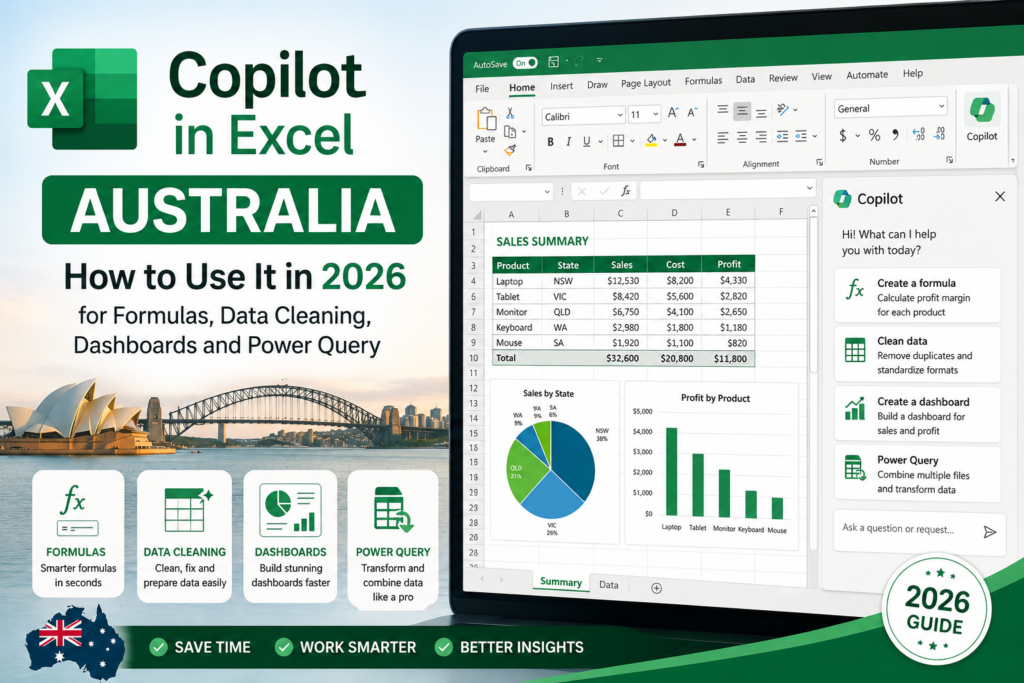
Copilot in Excel Australia is quickly becoming one of the most talked-about productivity upgrades for 2026, and for good reason. Excel is still one of the most relied-on tools in Australian workplaces, but this year Microsoft has pushed it well beyond simple formulas, adding Copilot, Agent Mode, smarter data import options, and a fully upgraded Power Query experience on the web. For professionals, students, and job seekers across Sydney, Melbourne, Brisbane, Perth, Adelaide, Canberra, Hobart, and Darwin, this shift means spreadsheet skills now include knowing how to work alongside AI, not just how to write a formula.
This guide breaks down what Copilot in Excel actually does, the prompts that get the best results, and how it fits alongside Power Query and Python in Excel.
What Is Copilot in Excel?
Copilot in Excel is Microsoft’s built-in AI assistant for spreadsheet work. Instead of manually building every formula or chart from scratch, you can describe what you need in plain English and let Copilot draft it for you. It can interpret data, suggest formulas, summarise tables, and spot patterns you might otherwise miss in a large worksheet.
What makes 2026 different is Microsoft’s push toward “agentic” AI. Copilot isn’t limited to answering one-off questions anymore through Agent Mode, it can carry out several connected steps inside a workbook, such as cleaning a dataset and then building a chart from the result, with far less back-and-forth from the user.
What’s New in Excel in 2026?
A few updates are worth knowing if you want to get the most out of Excel this year:
- Agent Mode is now generally available in Excel on Windows, with a Mac rollout following, giving Copilot more ability to act on multi-step tasks directly inside a workbook.
- The full Power Query experience is generally available in Excel for the web, making it far easier to import and reshape data without leaving your browser.
- New IMPORTTEXT and IMPORTCSV functions make it simpler to pull in refreshable data from text and CSV files.
- Microsoft has added clearer visibility into what Copilot changes in a workbook, plus more control over how those edits are applied.
Together, these updates mean less manual cleanup and more transparency over what the AI is actually doing to your file.
Who Should Use Copilot in Excel in Australia?

Copilot is useful well beyond finance teams. It’s worth learning if you:
- Work in reporting, budgeting, or admin roles where spreadsheets pile up fast.
- Are a student or job seeker wanting to show modern, AI-ready Excel skills.
- Work in finance, healthcare, construction, retail, or government, where Excel remains a daily tool.
- Are based in Sydney, Melbourne, Brisbane, Perth, Adelaide, Canberra, Hobart, or Darwin and want practical, job-ready skills employers are starting to expect.
15 Real Copilot Prompts You Can Use in Excel
The fastest way to learn Copilot is to see exactly what to type. Here are real prompts organised by task.
Prompts for formulas
- “Create a formula to calculate total sales by region.”
- “Suggest an XLOOKUP formula to match product ID with product name.”
- “Show me the best formula for counting unique customers.”
Prompts for data cleaning
- “Remove duplicate entries and identify missing values.”
- “Standardise date formats across this worksheet.”
- “Split this full name column into first name and last name.”
Prompts for dashboards and summaries
- “Create a dashboard showing monthly sales trends.”
- “Summarise the top-performing products and regions.”
- “Build a PivotTable that compares department spending by month.”
Prompts for data imports and Power Query
- “Import this CSV file and clean it for analysis.”
- “Use Power Query to combine these monthly tables into one dataset.”
- “Prepare this imported data for a dashboard.”
Prompts for everyday productivity
- “Explain what this formula is doing in plain English.”
- “Highlight any rows with values more than 20% above average.”
- “Suggest a chart type for this dataset and explain why.”
After every prompt, check the result before you rely on it. Copilot is fast, but it still needs a second look especially with formulas that feed into reports other people will use.
Copilot in Excel vs Power Query vs Python in Excel
These three tools solve different problems, and knowing when to reach for each one will save you time.
When to use Copilot in Excel
Use Copilot when you want fast help with prompts, summaries, draft calculations, or general workbook assistance.
When to use Power Query
Use Power Query when you need to import, transform, clean, and combine data in a structured, repeatable way now even more capable in Excel for the web.
When to use Python in Excel
Use Python in Excel for advanced work such as predictive analysis, visualisation, and data science tasks using libraries like pandas, Matplotlib, and scikit-learn.
In short: Copilot helps you move faster, Power Query helps you shape data properly, and Python in Excel helps you go deeper when a spreadsheet alone isn’t enough.
Common Mistakes When Using Copilot in Excel
- Feeding it messy data with inconsistent headers and expecting clean output.
- Giving vague instructions instead of specific, clear prompts.
- Publishing or sharing a file without reviewing AI-generated changes first.
- Expecting Copilot to replace Power Query or Python for genuinely complex transformations or analysis.
Clear prompts and a quick manual review will solve most of these issues before they become a problem.
Is Copilot in Excel Australia Worth Learning in 2026?
Traditional Excel skills aren’t going anywhere, but they’re no longer enough on their own. The professionals and job seekers who stand out in 2026 are the ones who combine solid spreadsheet fundamentals with AI assistance, automation, and proper data handling. That combination is exactly why Copilot in Excel Australia is fast becoming a baseline expectation in many workplaces, not just a nice-to-have.
Final Thoughts on Copilot in Excel Australia
Copilot in Excel is one of the most useful additions to spreadsheet work in years, and it’s only getting more capable. Between Agent Mode, the upgraded Power Query experience, and tools like Python in Excel, learning Copilot in Excel Australia-style with local industries and city-based job markets in mind rewards people who know how to use AI well, not just people who know formulas. Whether you’re in Sydney, Melbourne, Brisbane, Perth, Adelaide, Canberra, Hobart, or Darwin, building these skills now will put you ahead.
Build Job-Ready Excel Skills in Australia
Want to go beyond basic spreadsheets? Explore our Excel courses in Australia and build practical skills in formulas, dashboards, data cleaning, and everyday workplace productivity.
→ Explore Excel Courses | Start Learning Excel Online | Find the Right Excel Course for You
FAQ
What is Copilot in Excel?
Copilot in Excel is Microsoft’s AI assistant for spreadsheets, helping you work with data, draft formulas, and complete tasks faster inside Excel.
What is Agent Mode in Excel?
Agent Mode extends Copilot so it can carry out multiple connected steps inside a workbook rather than just answering single questions. It became generally available on Windows in 2026, with a Mac rollout following.
Is Power Query still important if I use Copilot?
Yes. Power Query remains the better tool for structured, repeatable data import and cleaning, and it’s now fully available in Excel for the web.
What is Python in Excel used for?
Python in Excel handles more advanced work analysis, visualisation, and predictive modelling using libraries such as pandas and Matplotlib.
Who should learn Copilot in Excel in Australia?
Anyone who regularly works with spreadsheets: office professionals, students, and job seekers, especially in finance, admin, healthcare, construction, retail, and government roles.